
← Help Center · Vehicle management
Find and customise your vehicle list
Learn how to find, filter and save custom vehicle lists in Vialumina to quickly get the right data for your fleet.
Here is a quick guide to help you customise and save views for your fleet in the Vialumina portal.
Step 1 – Go to Vehicles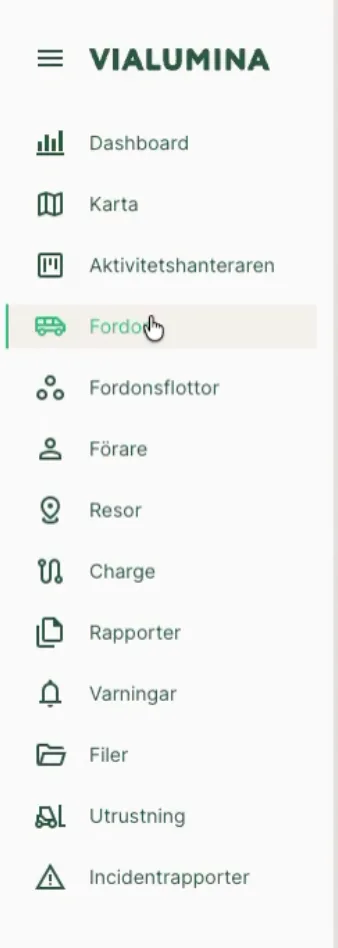
- [00:02] Click “Vehicles” in the menu on the left to see the list.
Step 2 – Customise columns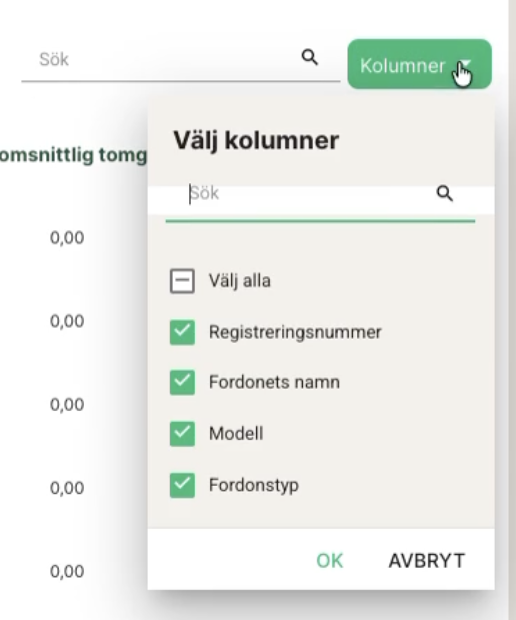
- [00:07] Click “Columns” to choose which data fields to show.
Choose which data should be visible, e.g. “Actual driving days” or “Average distance”.
Step 3 – Filter the vehicle list
- [00:46] Use the filter icon (the funnel) to filter the list.
Step 4 – Save a custom view

- [00:53] Click the save icon (the floppy disk).
Step 5 – Name and save
- [01:01] Give the view a name (e.g. “My vehicle list”) and click “Save”.
Not using Vialumina yet? See how mileage logs, vehicles and charging work together in one system.
Book a demo