
← Help Center · Introduction & overview
Create a custom dashboard in Vialumina
This guide shows how to quickly create your own dashboard in the Vialumina portal. Customise your view with relevant widgets and save your personal dashboard.
Step 1 – Add a new dashboard
- Start on your main “Dashboard”. Click the plus icon (
+) in the top right corner to create a new dashboard.
Step 2 – Name your dashboard
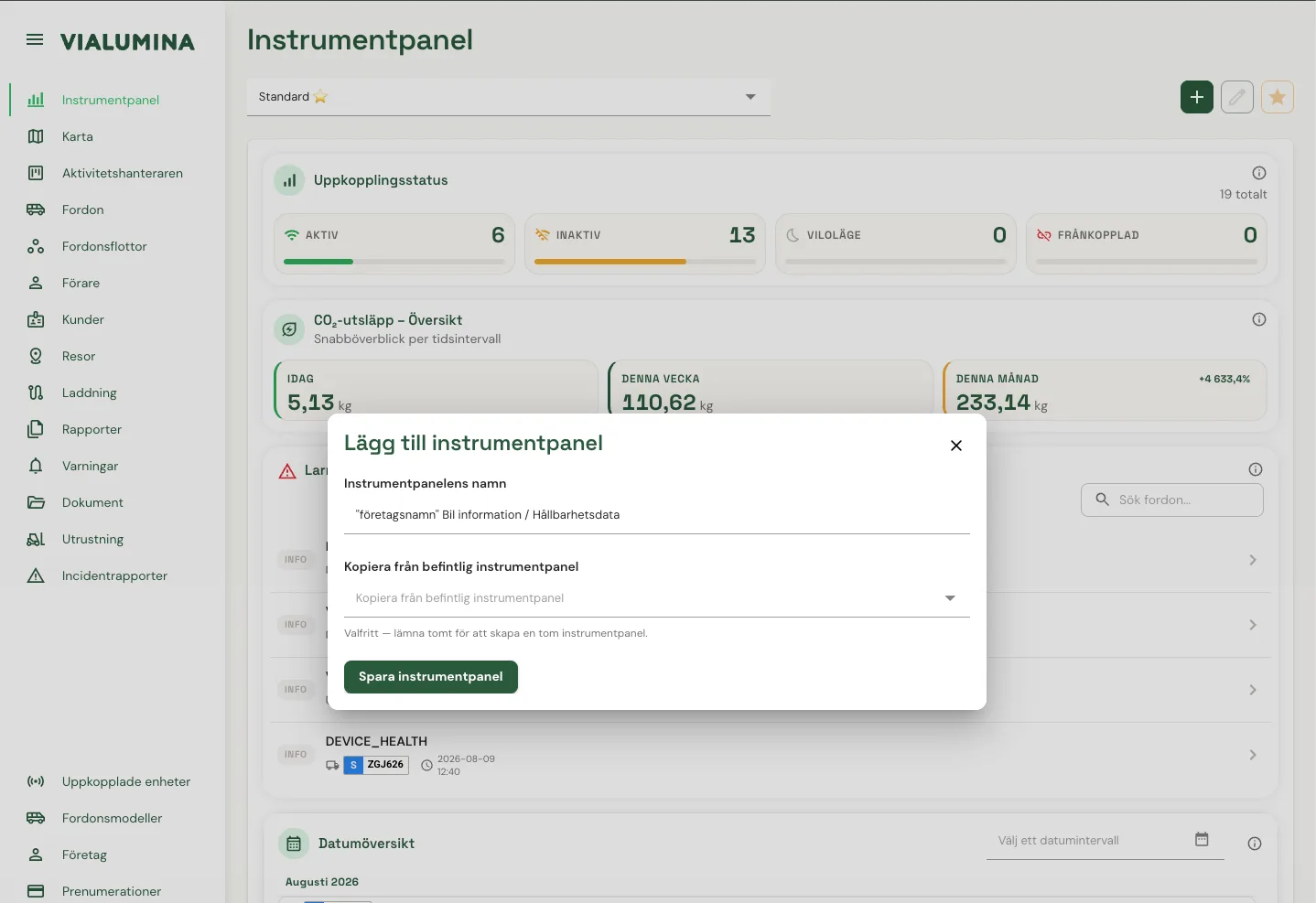
- A new window opens. Enter a name for your new dashboard in the “Profile name” field. In the example it is named “Company name + Info”.
Step 3 – Choose which views (widgets) to show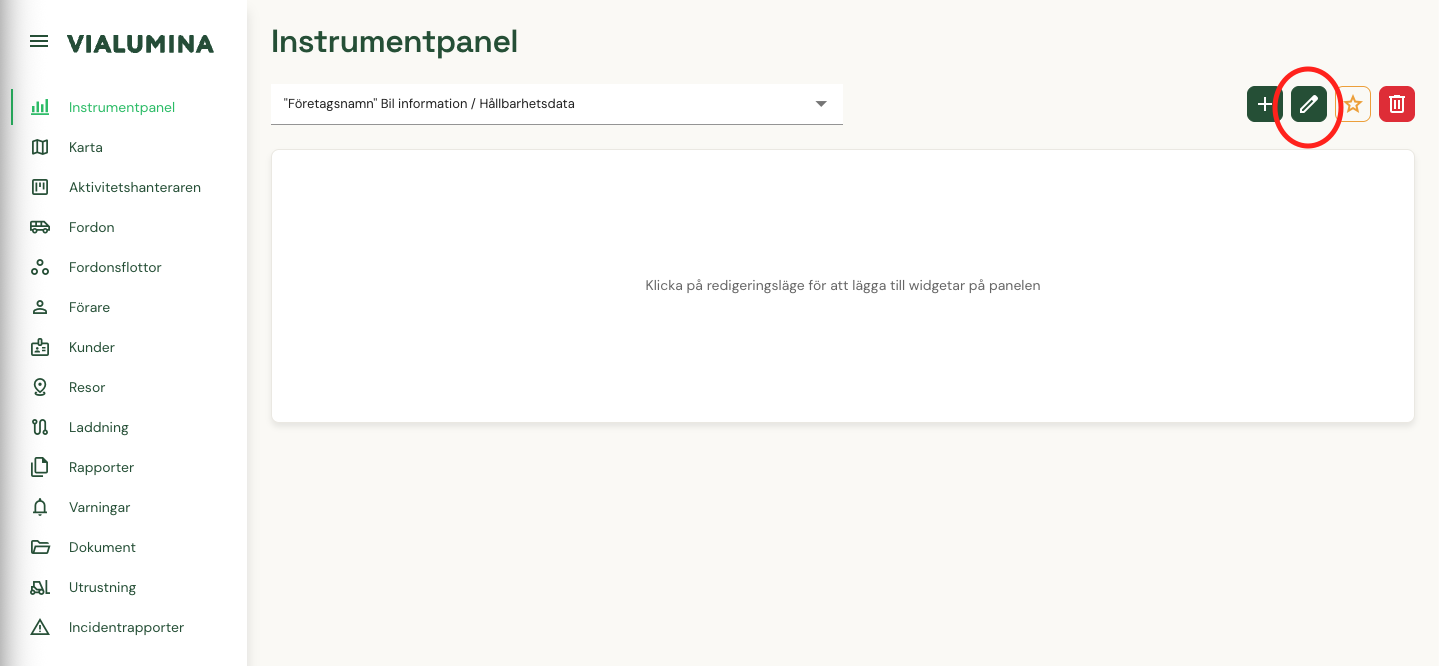
- Click the edit button

- Click “Add widget”

- In the drop-down list, choose which widgets you want to show. (There is no limit on how many or few widgets you can select.)
Step 4 – Save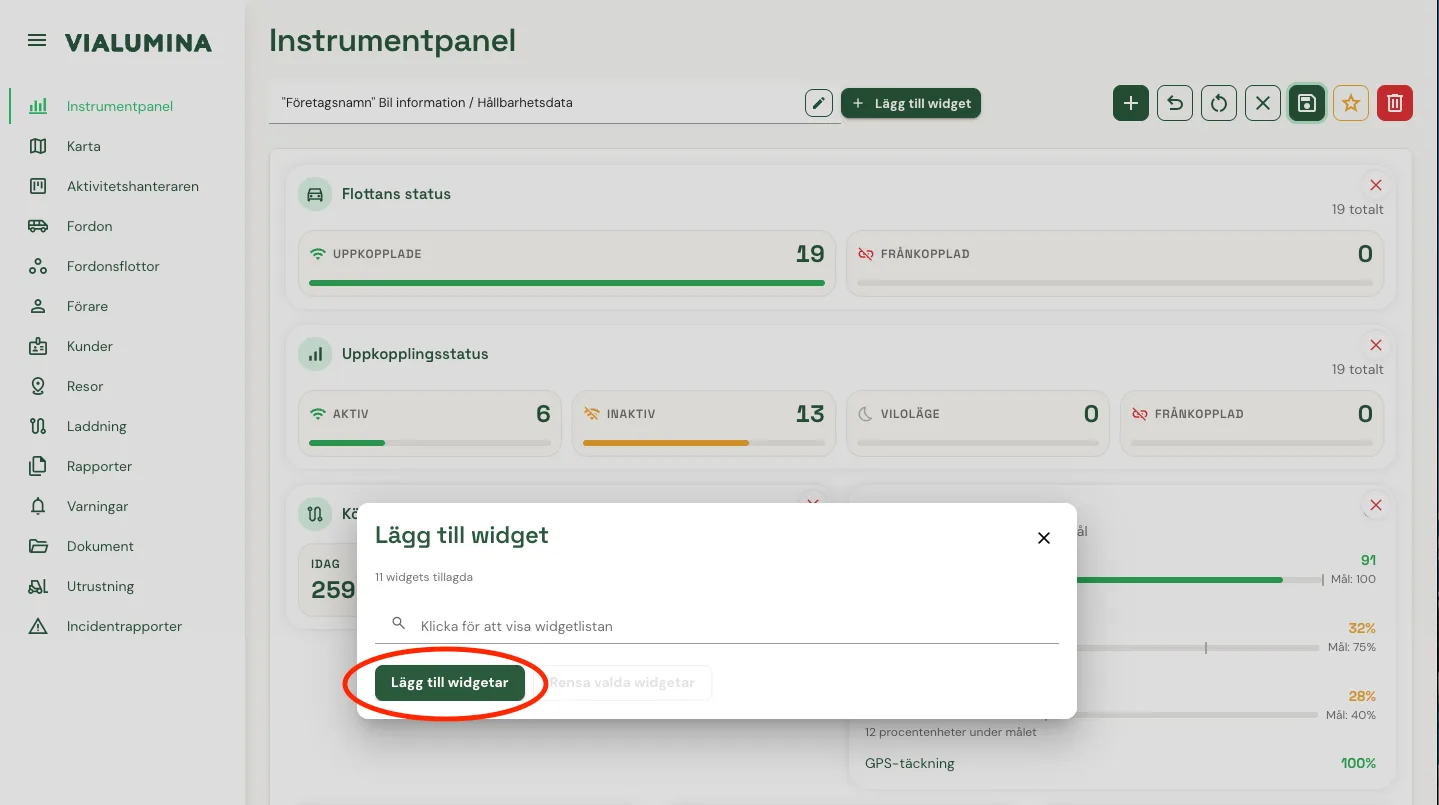
- When you are happy with your choices, click the green “Add widgets” button.
Result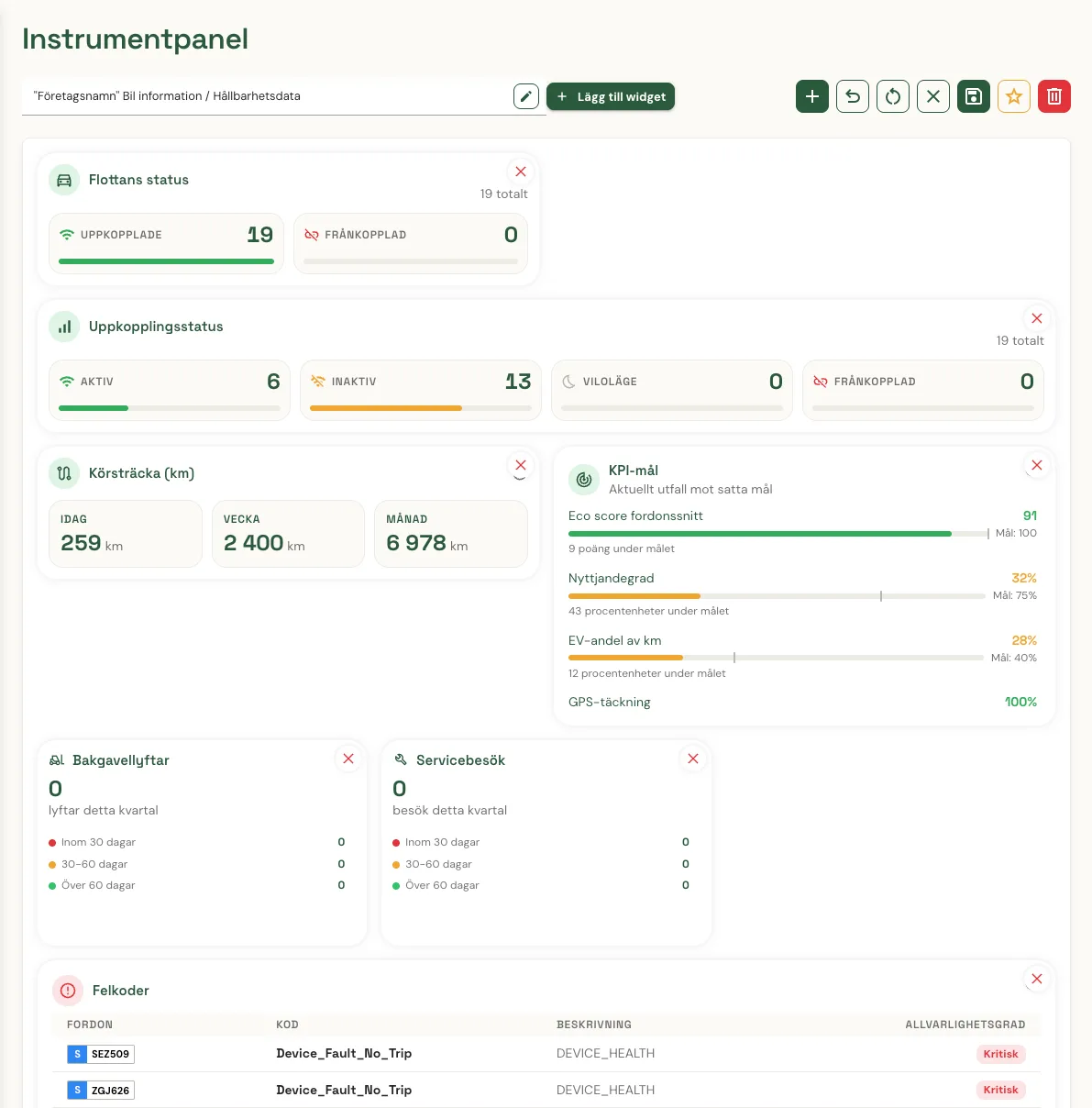
- Your new custom dashboard is now created and shows the views you selected.
- You can customise how your dashboard looks and is structured by dragging and dropping the widgets to wherever you want them.
- You can also resize any widget by hovering over it and clicking the three dots in the corner. (They are only visible when the mouse pointer is over the widget.)
- You can switch between your dashboards via the drop-down menu at the top of the page.
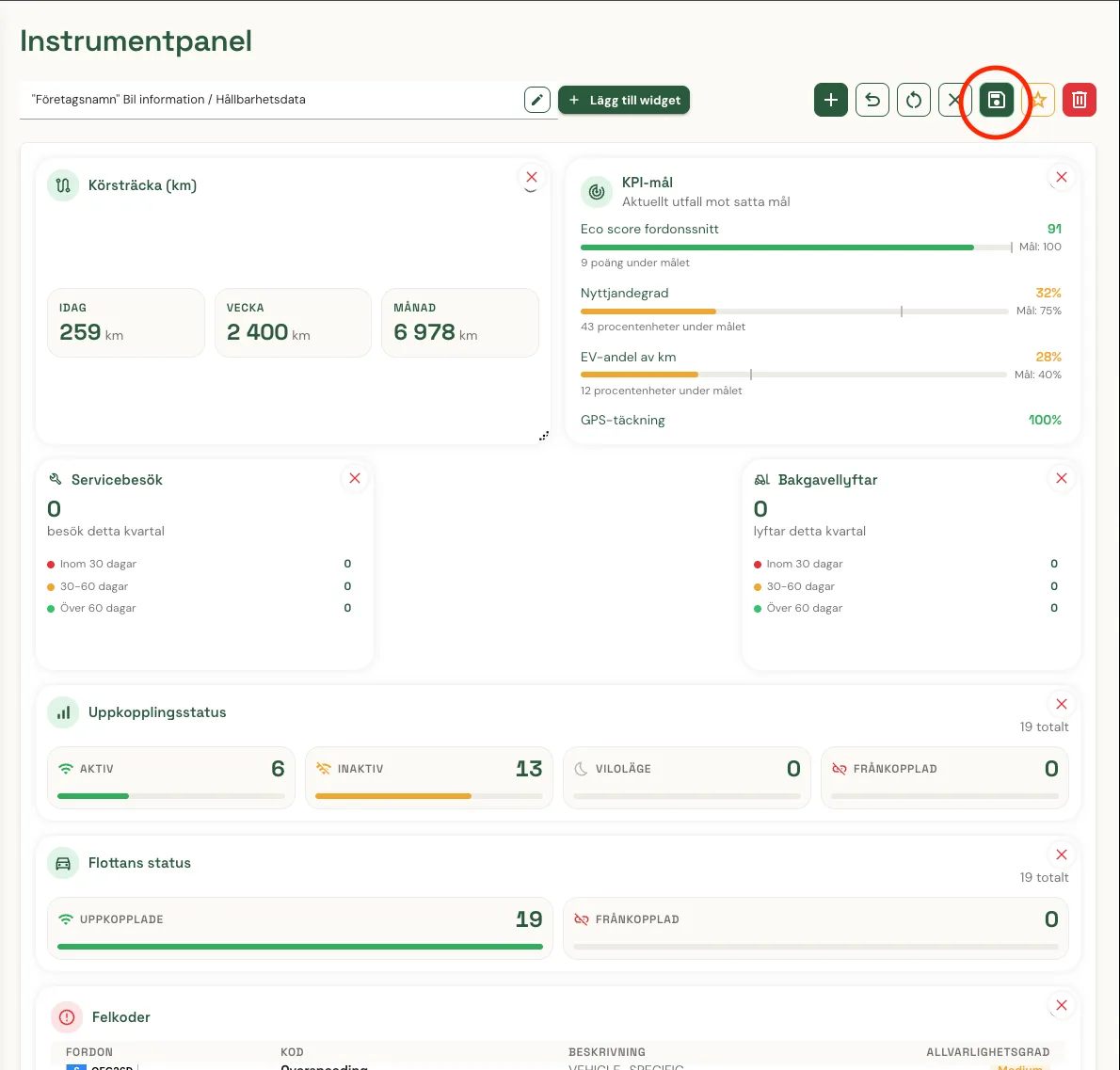
- When you are happy with your dashboard, click the Save button.
- You can easily switch between your dashboards via the drop-down menu at the top of the page.
Not using Vialumina yet? See how mileage logs, vehicles and charging work together in one system.
Book a demo