
← Help Center · Statistics and analytics
Export and schedule reports
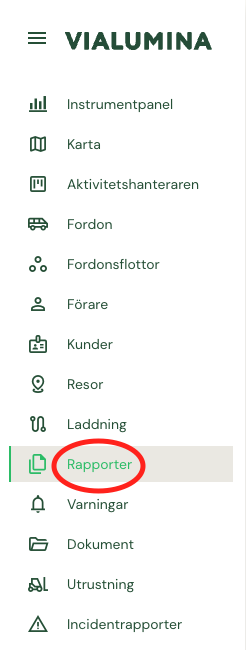
Click Reports in the main menu.
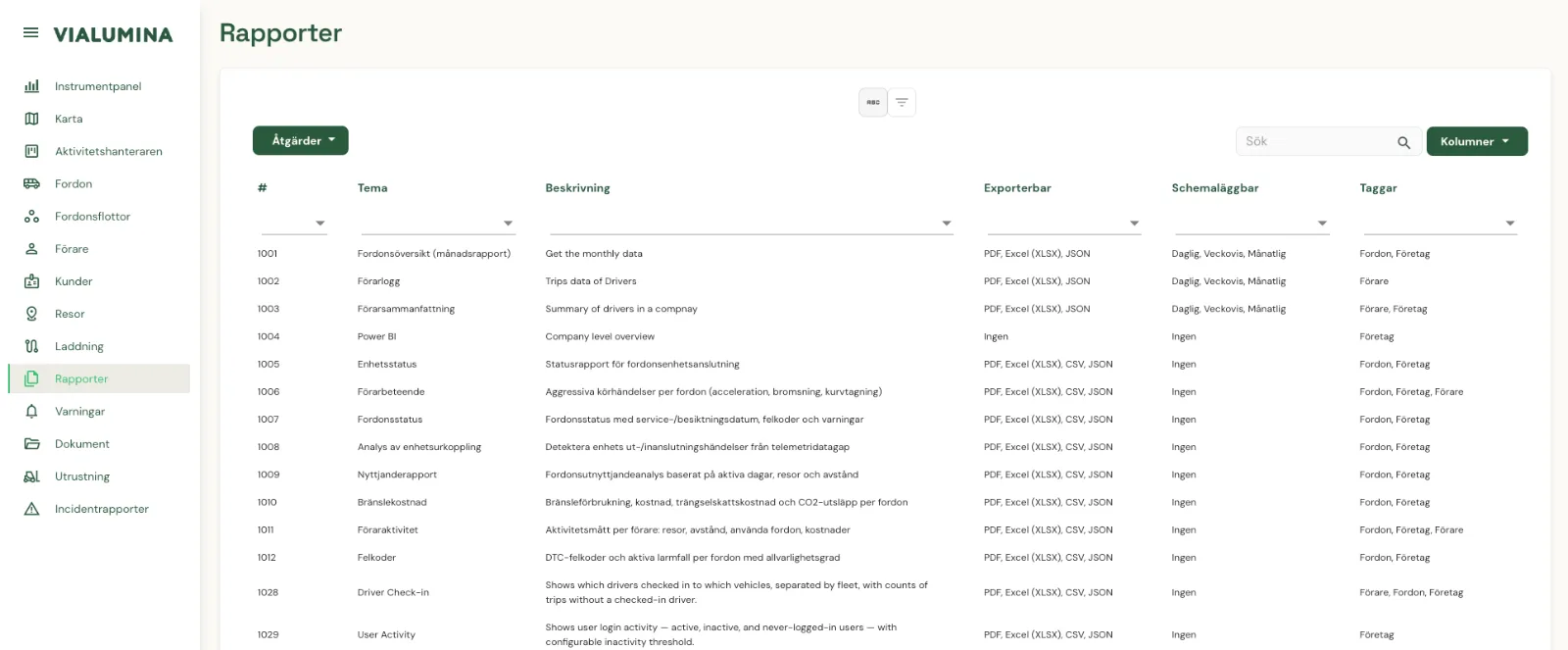
Choose a report type by clicking a report in the list. Each report type has a unique number shown in the first column of the table. The list also shows a short description of the report, the export type and whether the report can be scheduled.
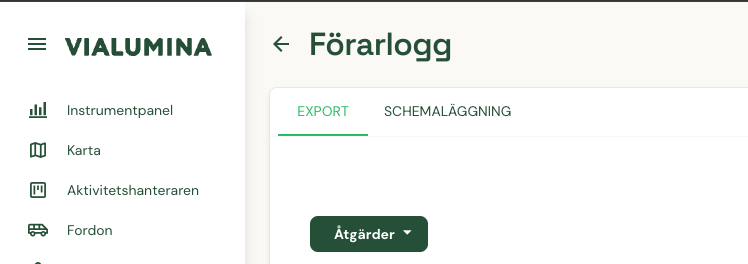
There are two tabs to choose from: Export, to export a report directly, and Scheduling, to schedule a report that is sent to selected users on a set schedule.
Export

Click Export report.
Fill in the details and choose the settings for the report.

Click Save.
The report is generated. This can take a little while. You can leave the page in the meantime and come back later – the report keeps generating even if you leave the page.
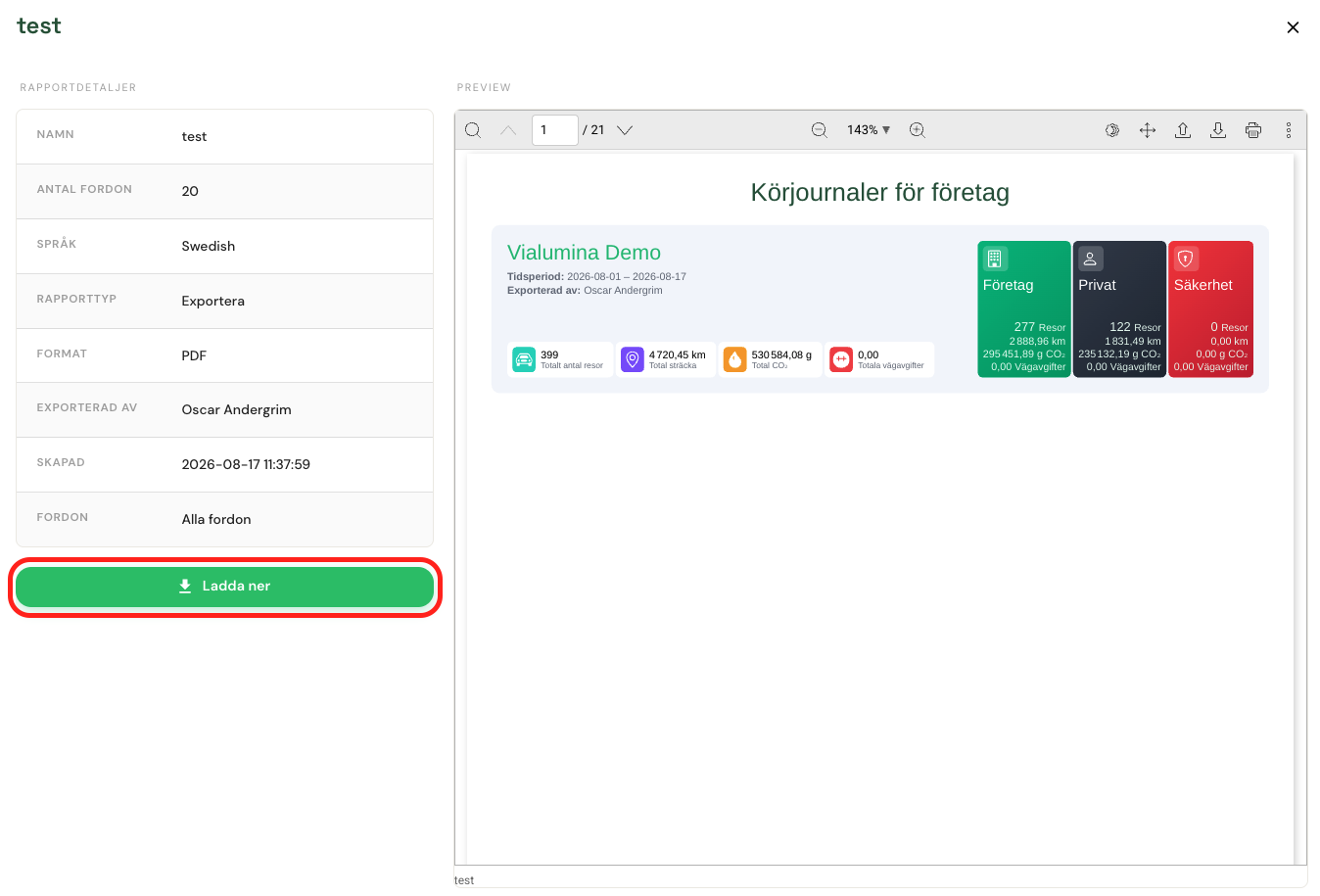
To see a preview and details of the report, click a report in the list.
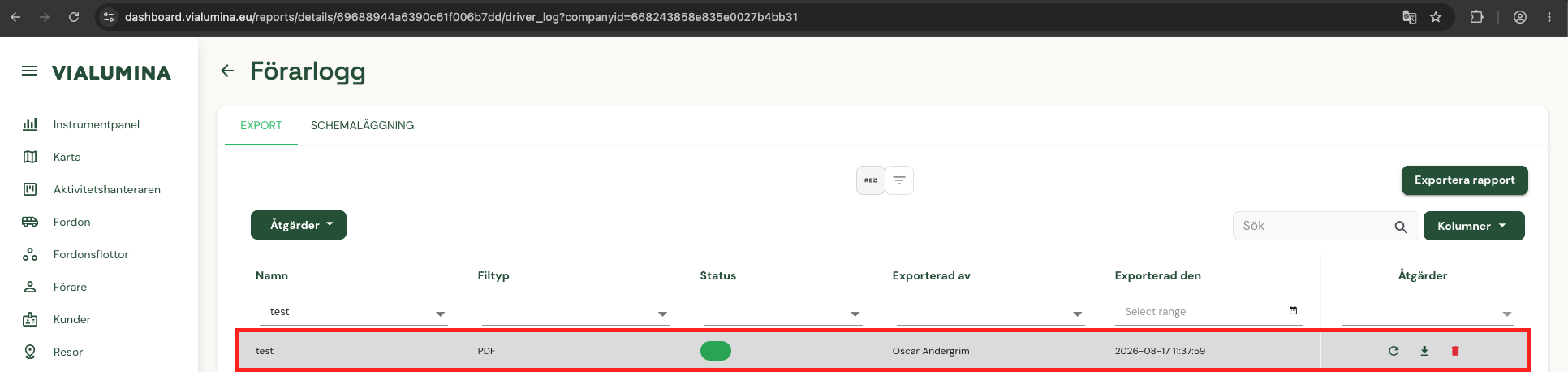
To regenerate, download or delete a report, use the icons in the list.
If you click the report, a preview opens in the system that looks like this:
Scheduling

To schedule a report, select the Scheduling tab.
Click Schedule report.
General

Fill in the details.
Schedule
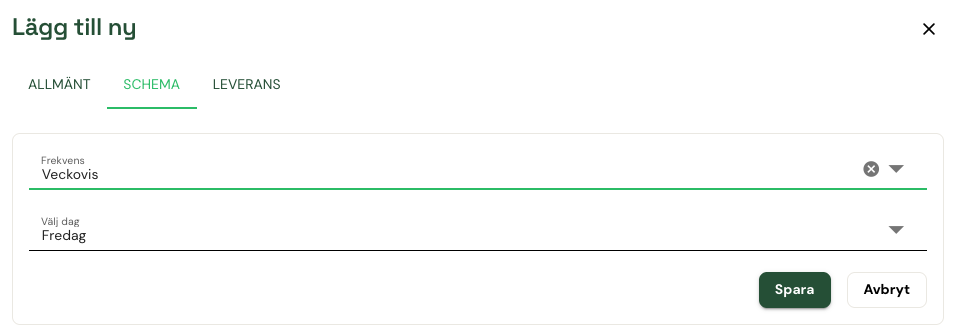
Choose how often and when the report should be sent.
Delivery
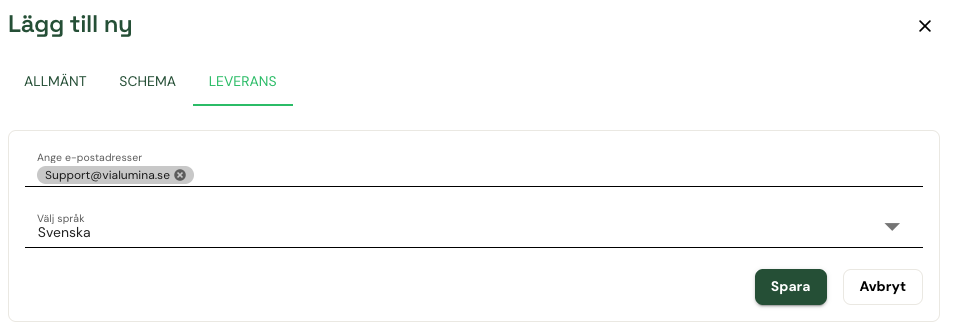
Choose where the report should be sent and which language to use.
Click Save.
To see details of a report, click the report in the list.
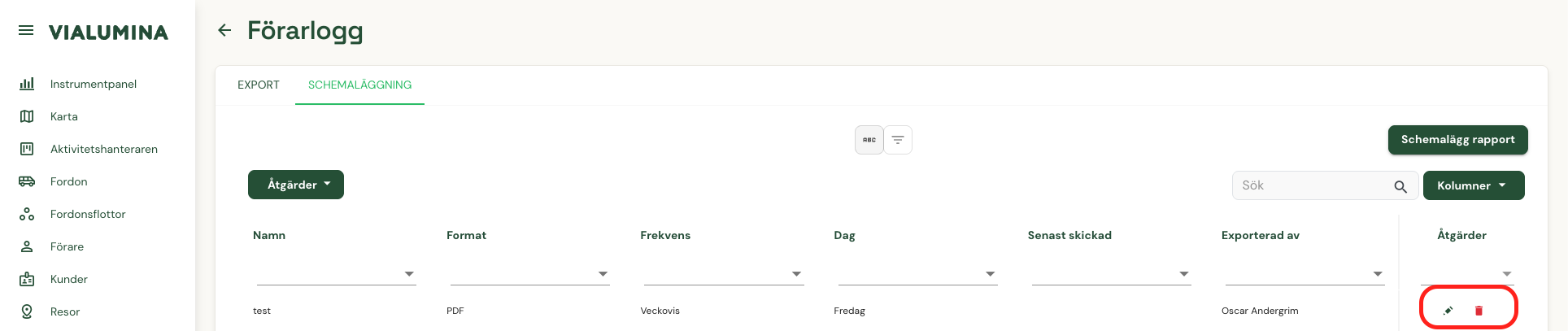
To change a scheduled report, click the pencil icon in the list. The settings for changing a report are the same as when you create one.
To delete a scheduled report, use the trash can icon in the list.
Not using Vialumina yet? See how mileage logs, vehicles and charging work together in one system.
Book a demo