
← Help Center · Statistics and analytics
Filtering, sorting and managing columns in tables

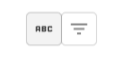
Tables use two different types of filters: text filters and list filters. To choose the filter type, click the buttons above each table.
In a text filter you type free text directly in the column header. The table then updates and shows the rows that match what you typed.

You can also adjust how the filter works by clicking the triangle next to the text field. For text columns you can, for example, choose to show rows where the text contains what you type, or rows where the text starts with what you type.

For number columns you can, for example, choose whether the value should be equal to, greater than or less than the value you enter.

Date columns have a date picker. There you choose which date, or date range, to show depending on how the filter is set.

You can filter on several columns at the same time. The table then only shows rows that match all selected filters.
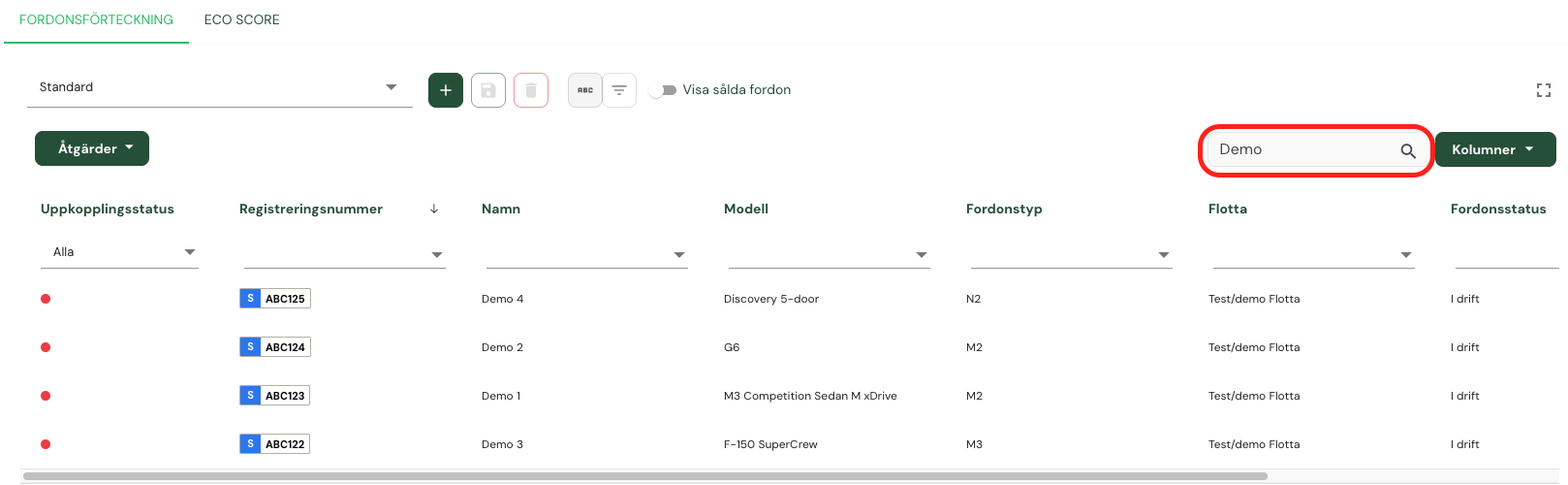
At the top there is a search box where you can search the table. The search lets you quickly find rows that match what you type, without choosing a specific column first.
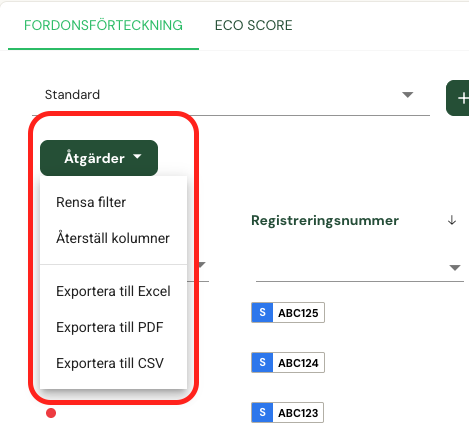
Under Actions you find the option Clear filters. It removes active filters and resets the table to an unfiltered state.
You can choose which columns to show in the table. Click Columns and tick the columns you want to be visible.
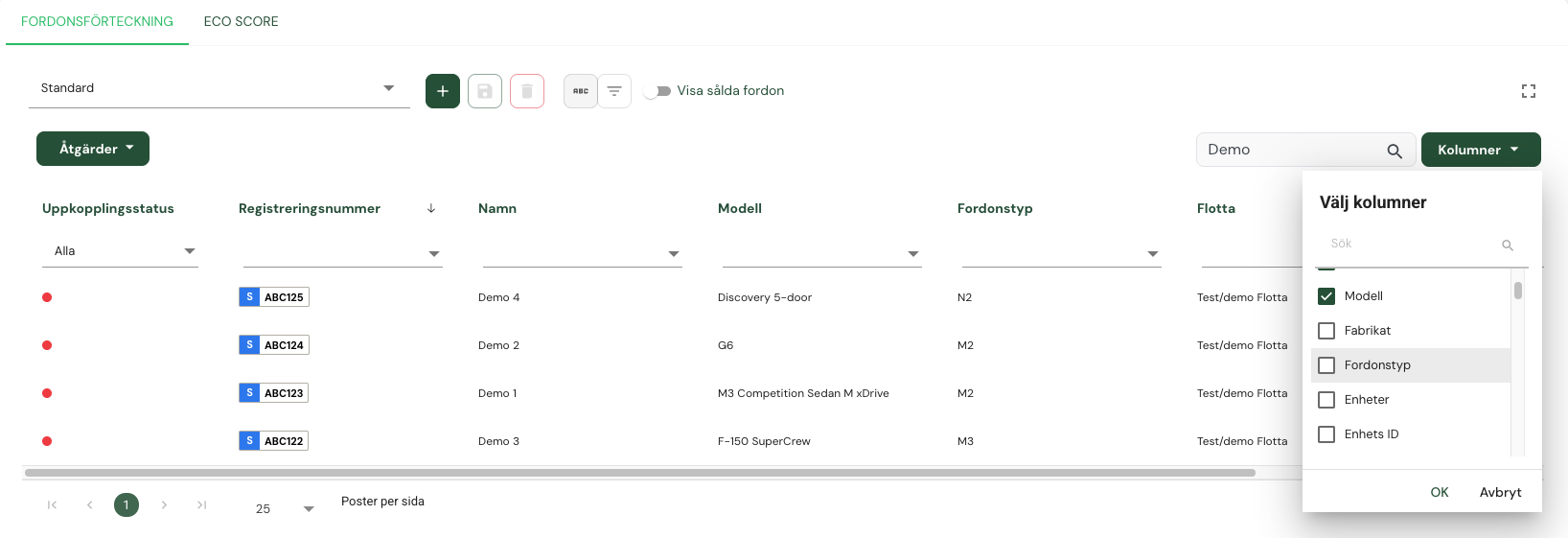
Your column choices are saved, so the same columns are shown the next time you return to the page.
To return to the default setting, click Actions and choose Reset columns. The columns selected by default are then shown.
Not using Vialumina yet? See how mileage logs, vehicles and charging work together in one system.
Book a demo