
← Help Center · Maps
Follow up speed and speeding
This guide shows how to follow up vehicle speed and identify speeding in Vialumina. With the map view, activity list and speed curve you get a clear overview of where and when violations have occurred.
Go to the map view by clicking Map

Choose Activity

Click Speeding in the panel on the right of the screen.
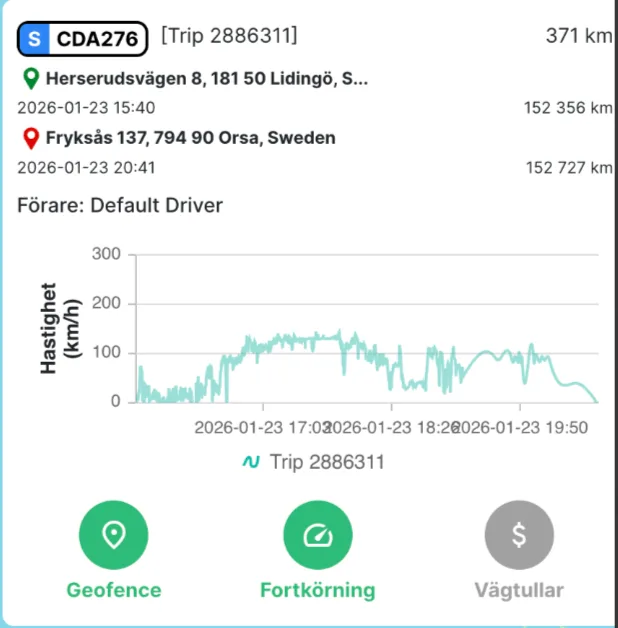
The system then highlights the stretches where speeding was registered along the trip.
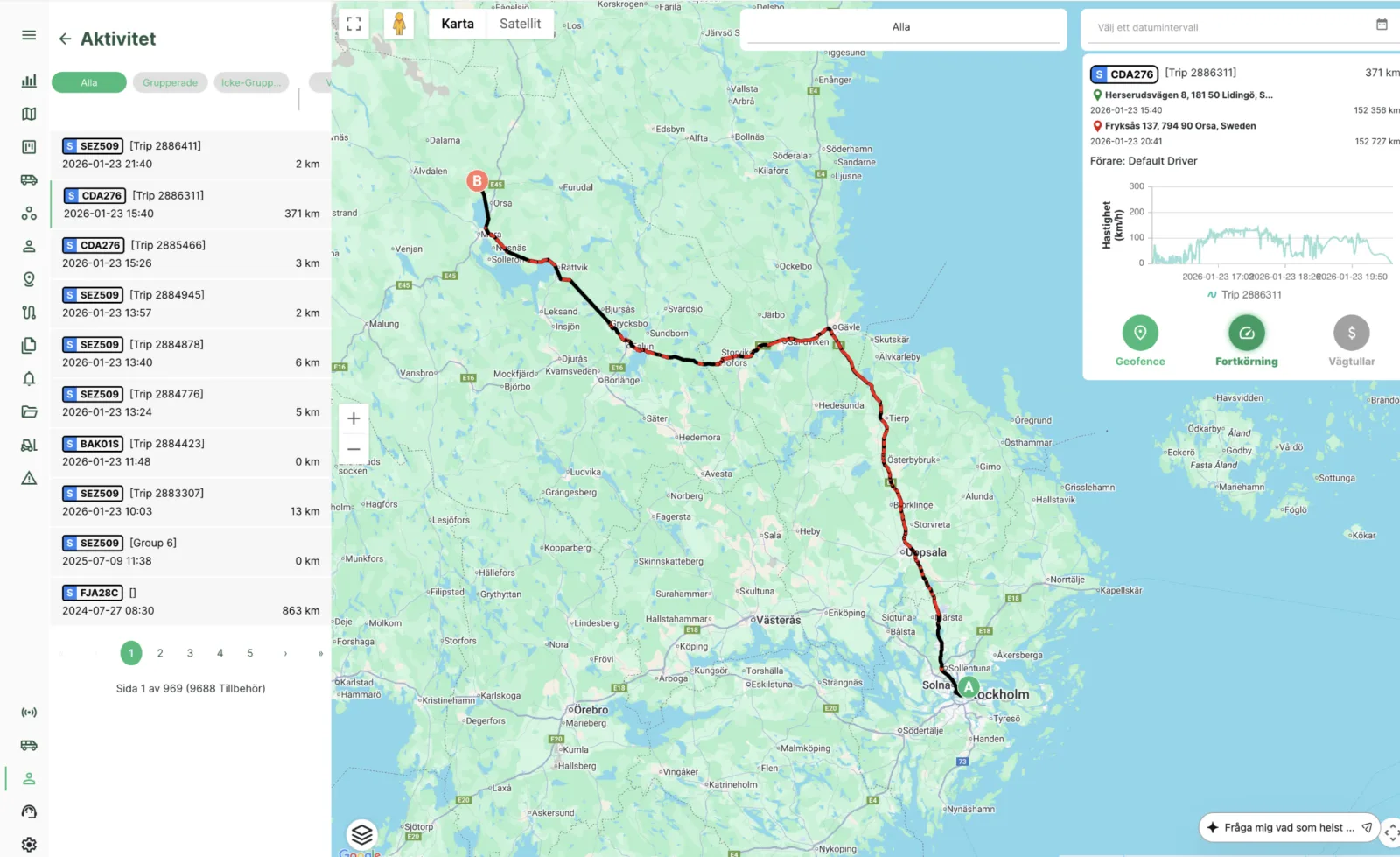
In the speed curve above the Speeding button you can follow the vehicle’s speed over time and see when speed limits were exceeded.
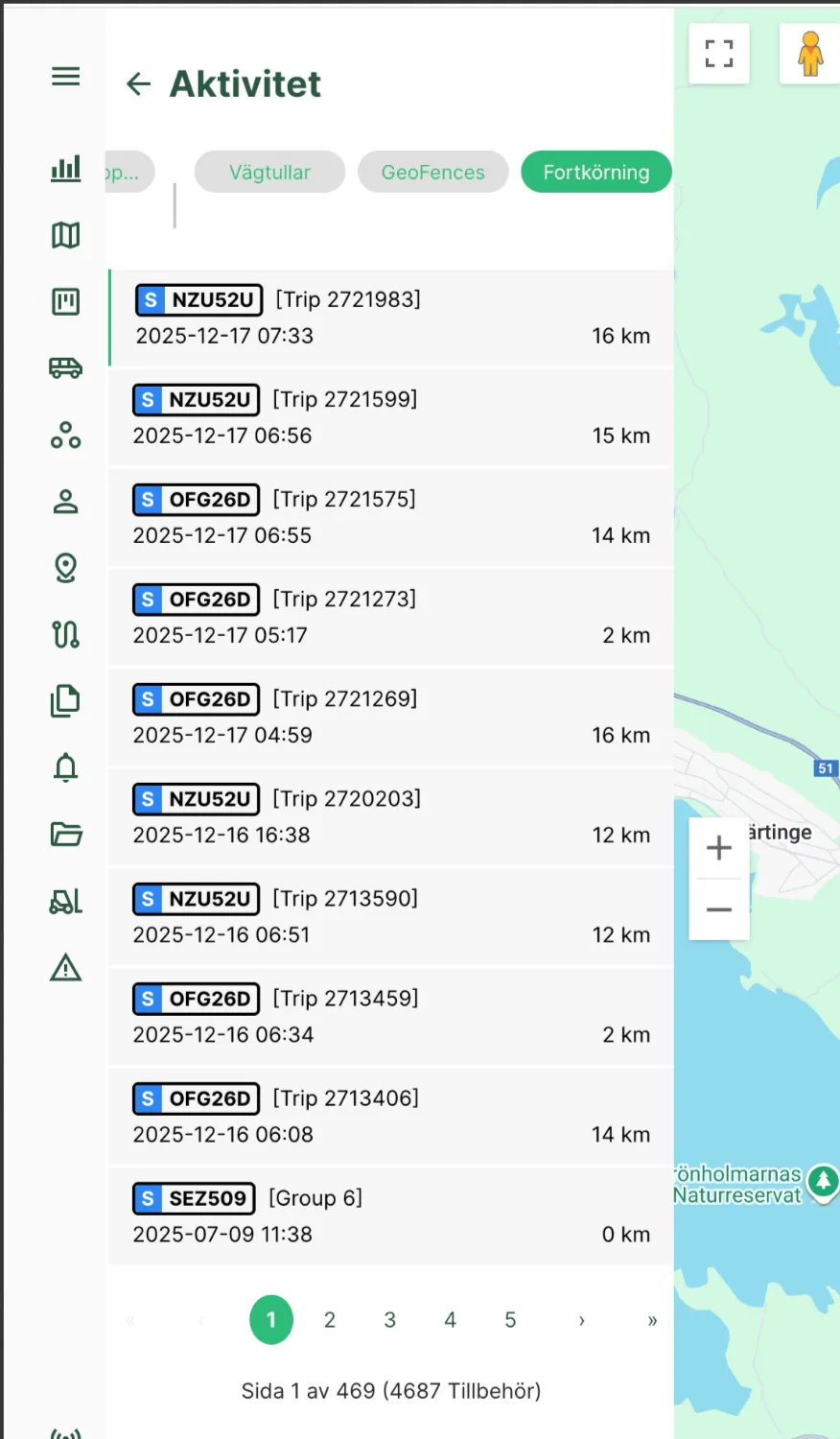
By choosing Speeding in the menu on the left, a summary of all trips and vehicles with speeding is shown.
Not using Vialumina yet? See how mileage logs, vehicles and charging work together in one system.
Book a demo