
← Help Center · Maps
Map view: follow vehicles and see vehicle history in real time
This guide shows how to use the map view in Vialumina to follow vehicles in real time, review historical routes and filter data by vehicle or date.
You get an overview of the most important features for tracking vehicles and analysing their history.
Part 1: Map view and vehicle status
Step 1 – Open the map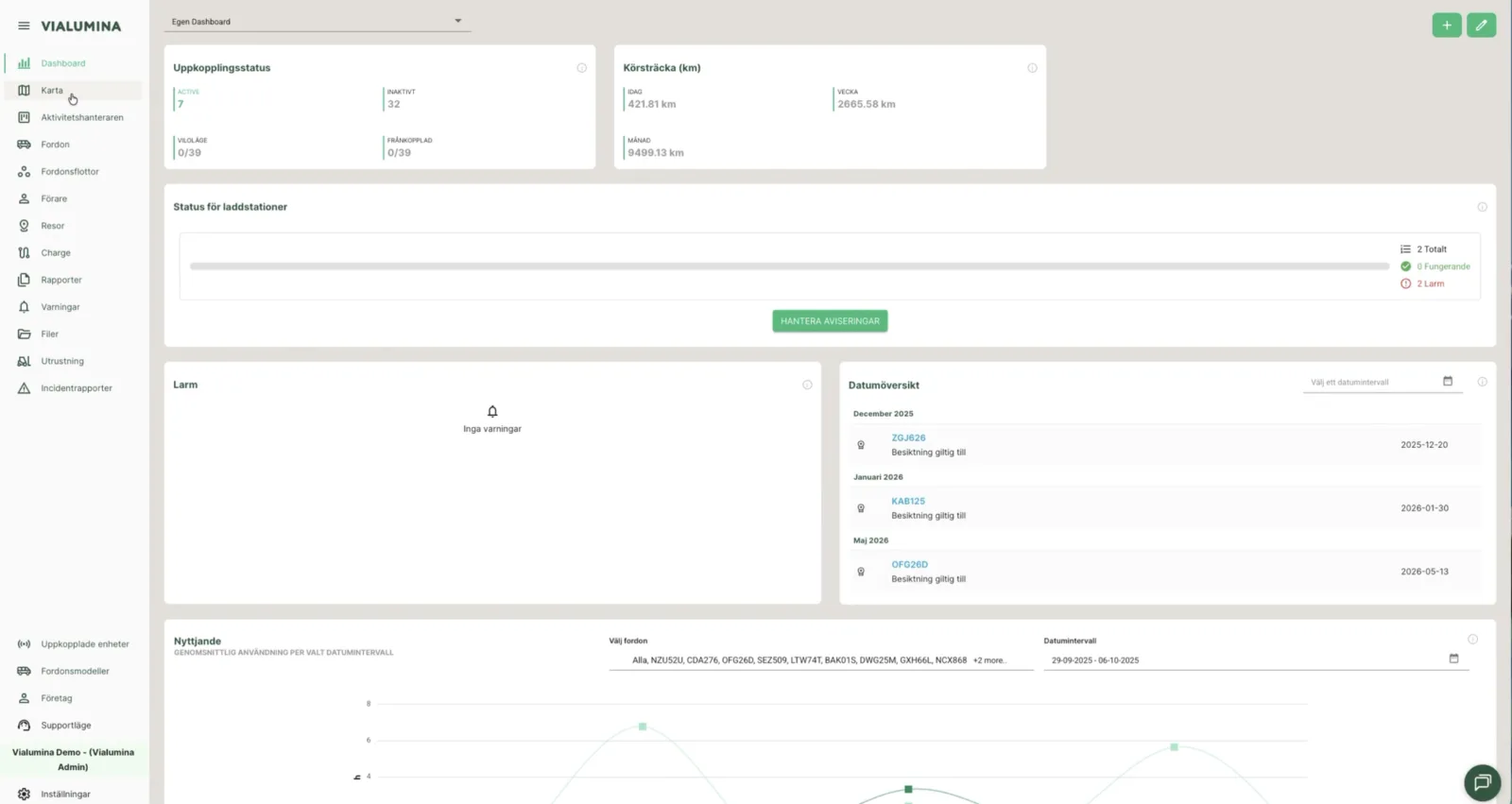
- To see your vehicles in real time, click Map in the menu on the left.
(00:01)
Step 2 – Filter vehicles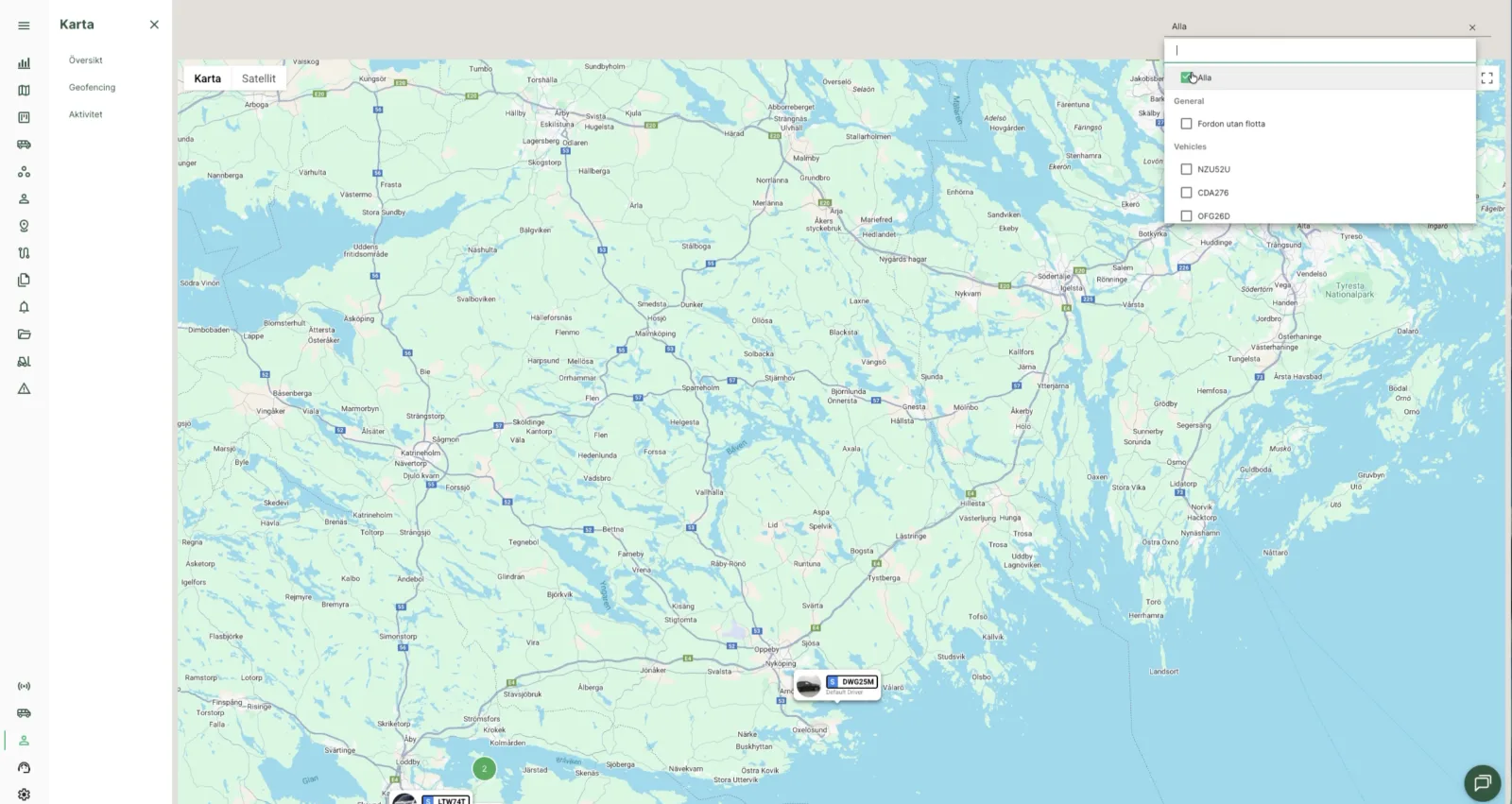
- Use the filter function in the top right to choose which specific vehicles you want to see.
- You can choose one, several or all.
(00:08)
Step 3 – See vehicle details
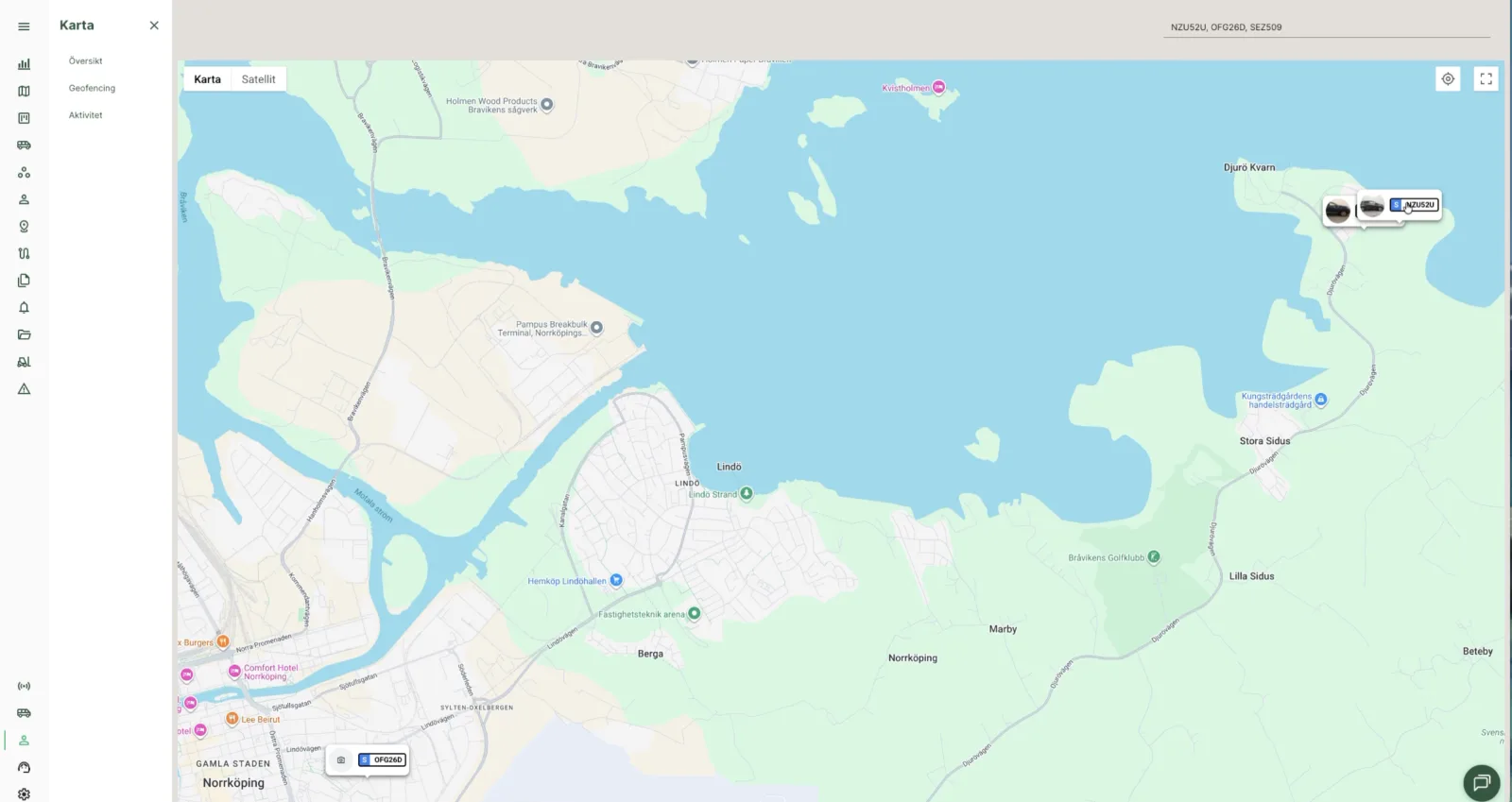
- Click a vehicle on the map to open a detailed view with information about the vehicle, its latest trips and current position.
(00:25)
Part 2: Activity view and trip history
Step 1 – Go to the Activity view
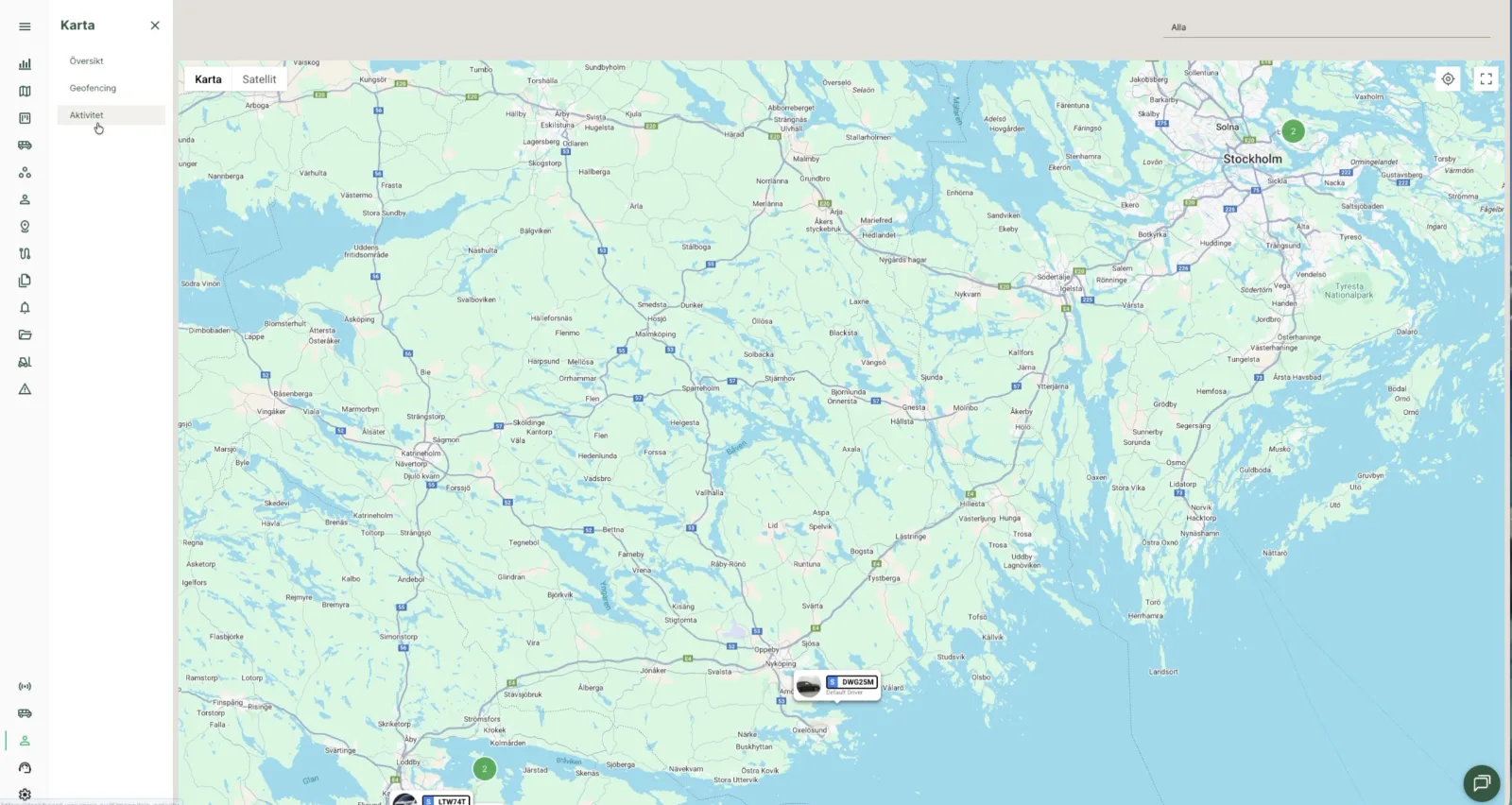
- To see history and routes driven, choose Activity under “Map” in the left menu.
(00:34)
In the activity view you can see all trips driven.
Step 2 – Filter trips by date
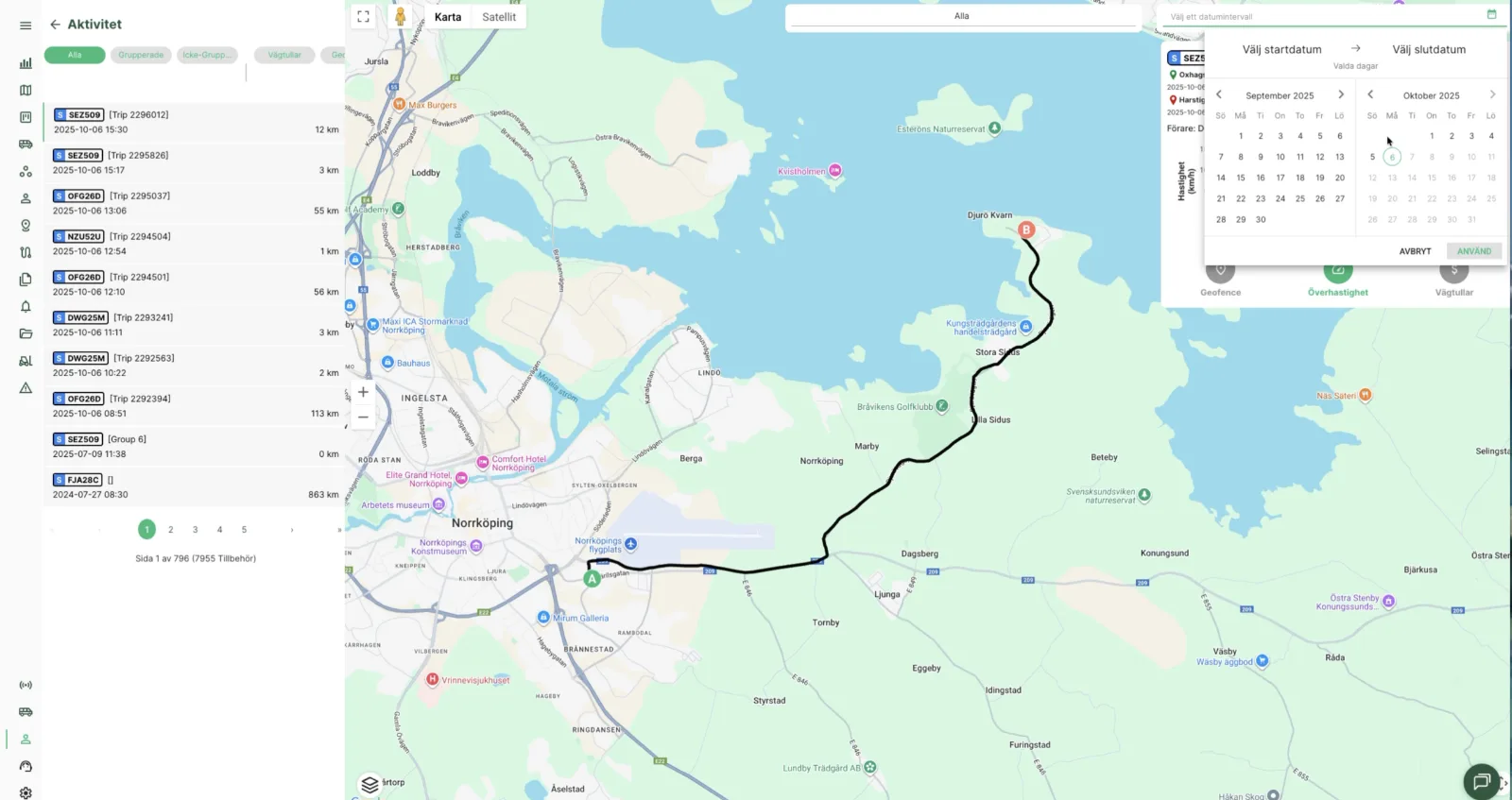
- Use the date picker to filter trips within a certain time range.
(00:42)
Step 3 – Filter by vehicle
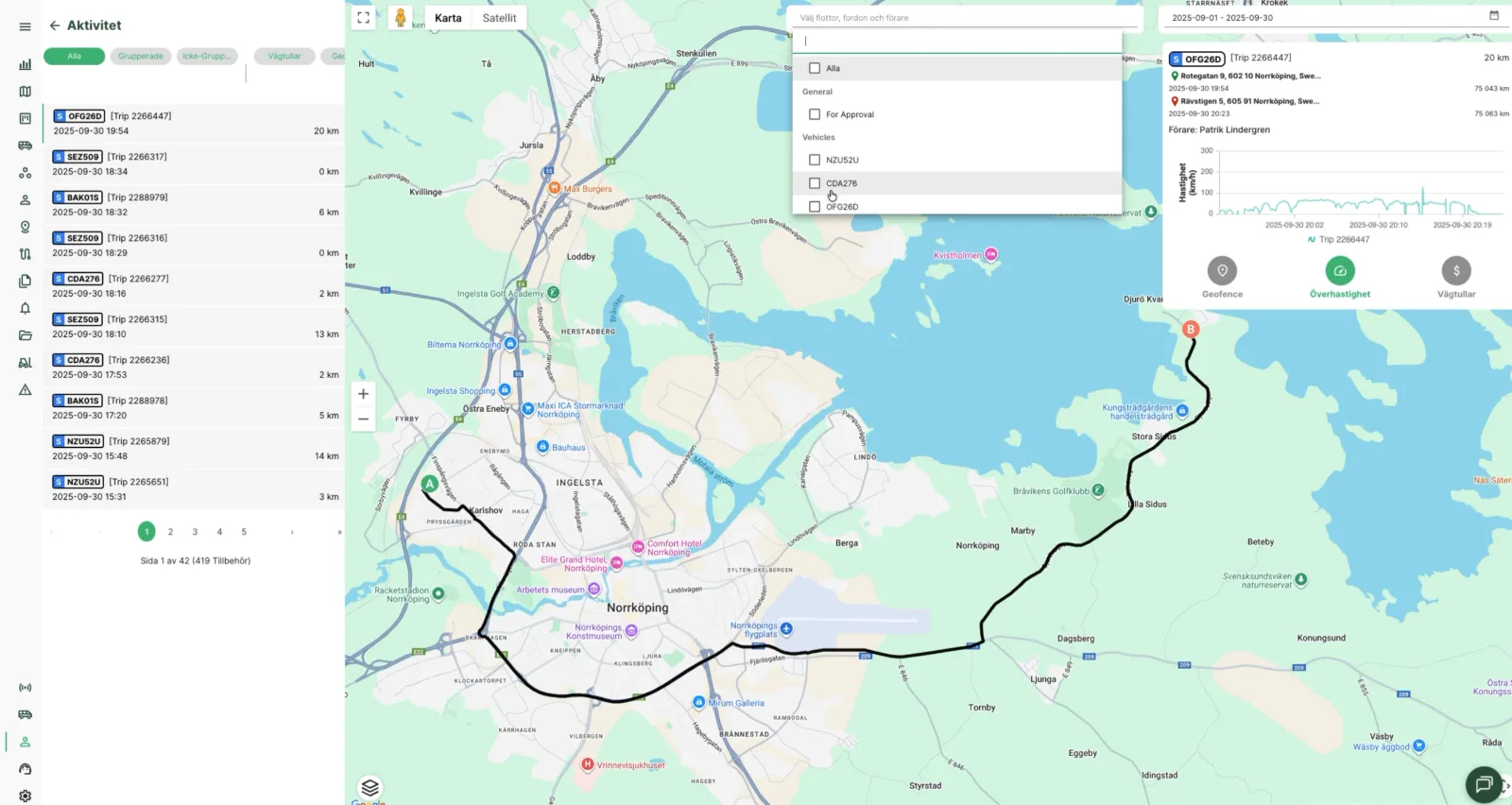
- Use the vehicle filter to see trips for a specific vehicle only.
(00:52)
Step 4 – Analyse a trip
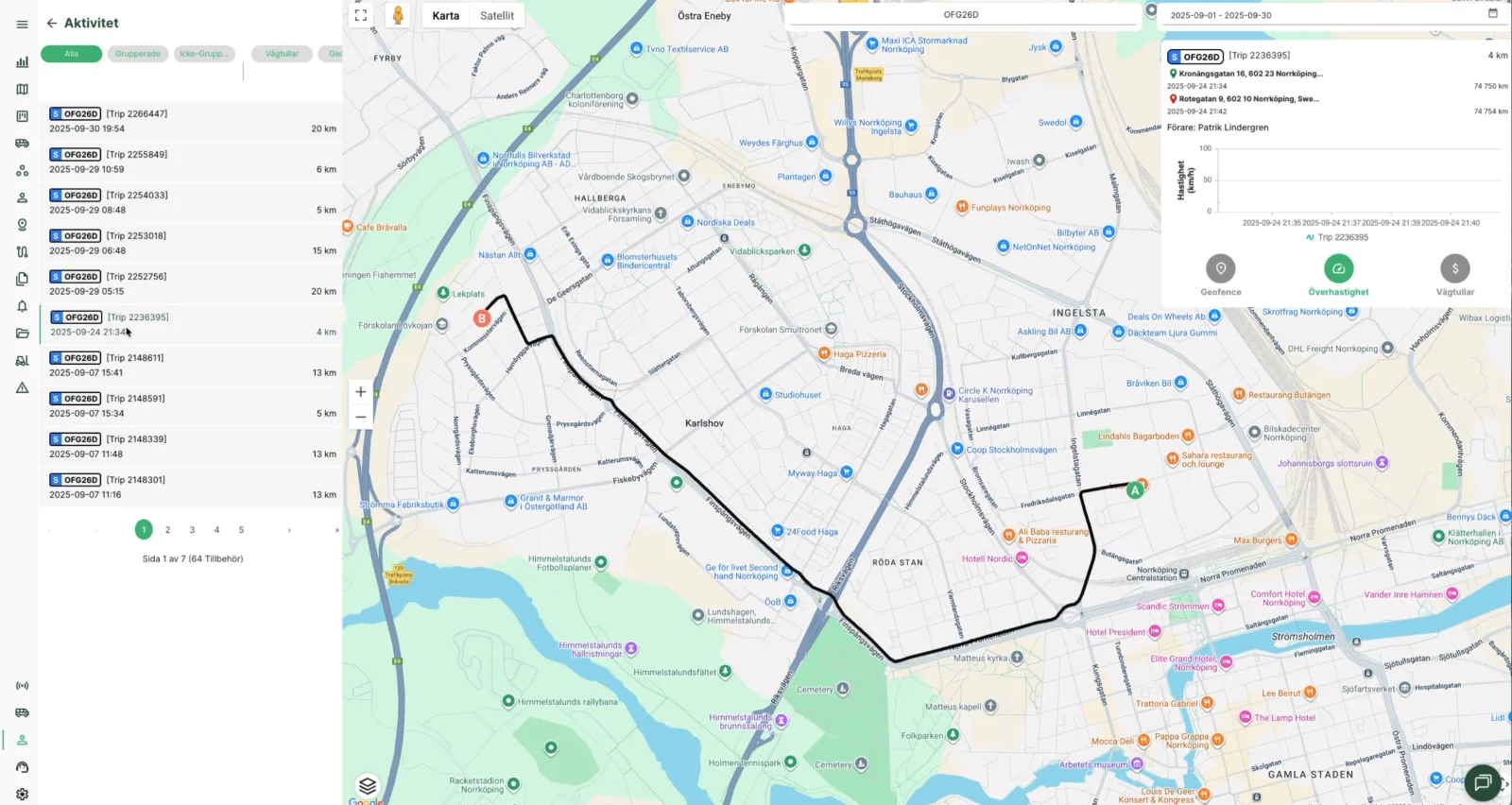
- Click a trip in the list on the left to see the exact route on the map.
- In the information box in the top right you can analyse details such as speed during the trip.
(01:00)
Not using Vialumina yet? See how mileage logs, vehicles and charging work together in one system.
Book a demo