
← Help Center · Trips
Merge trips & save trips as a route
A drive with a short stop is registered as two separate trips. Here is a guide on how to merge these trips into one. Several trips can also be counted as a route, and this guide shows how to do that too.
Merge trips
Step 1 – Go to Trips in the left column

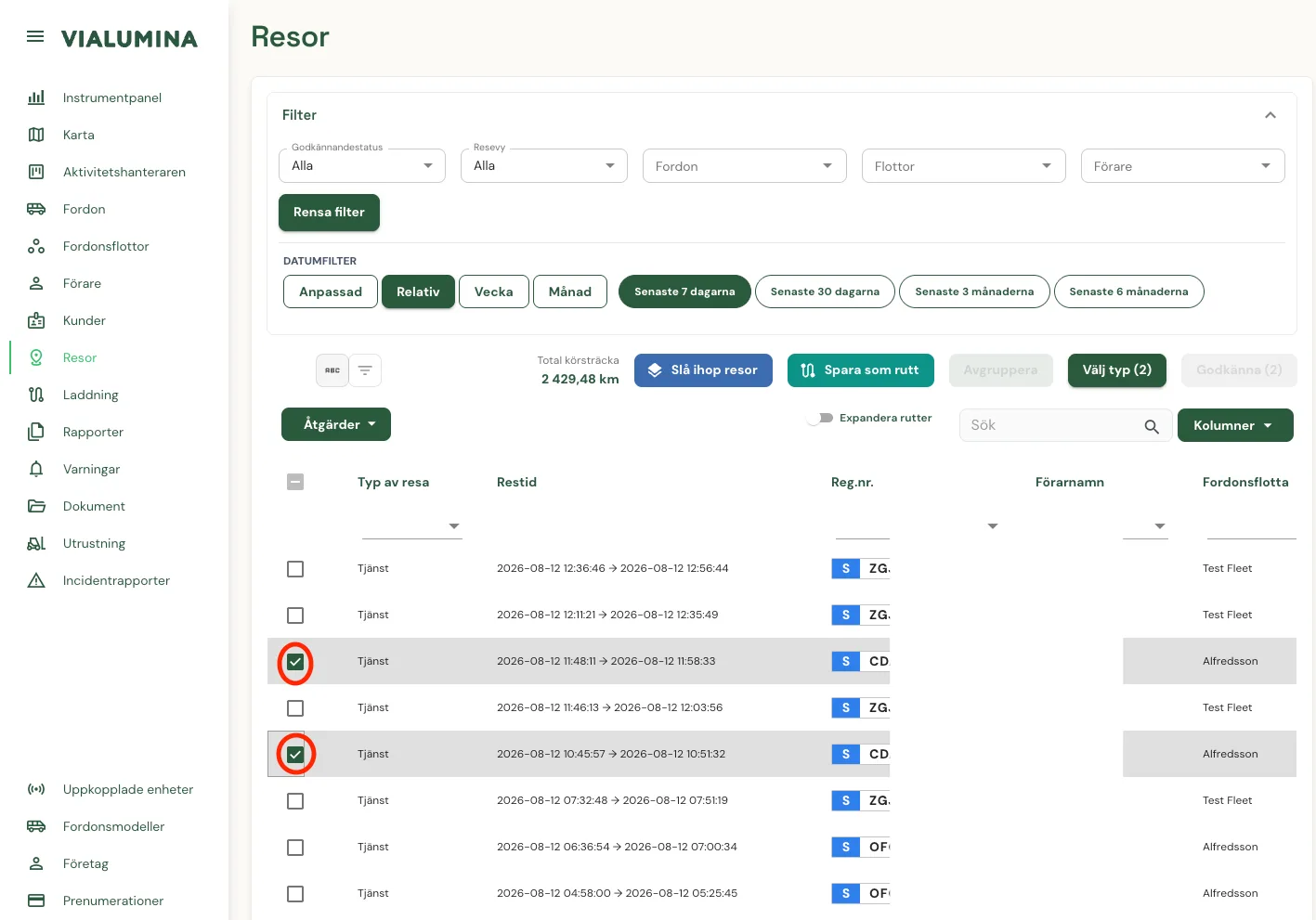
Step 2 – Select the trips you want to merge
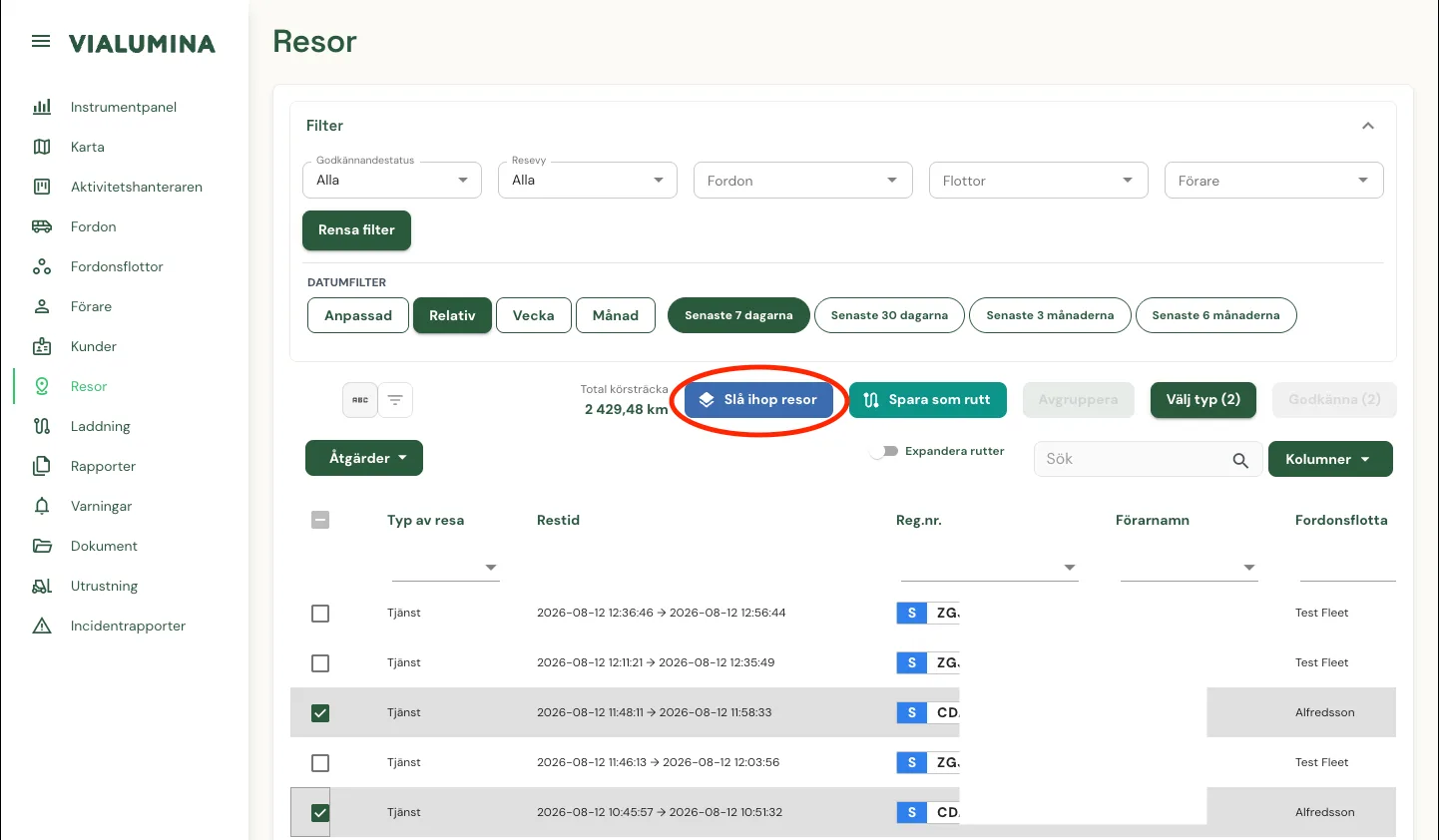
Step 3 – Merge the trips
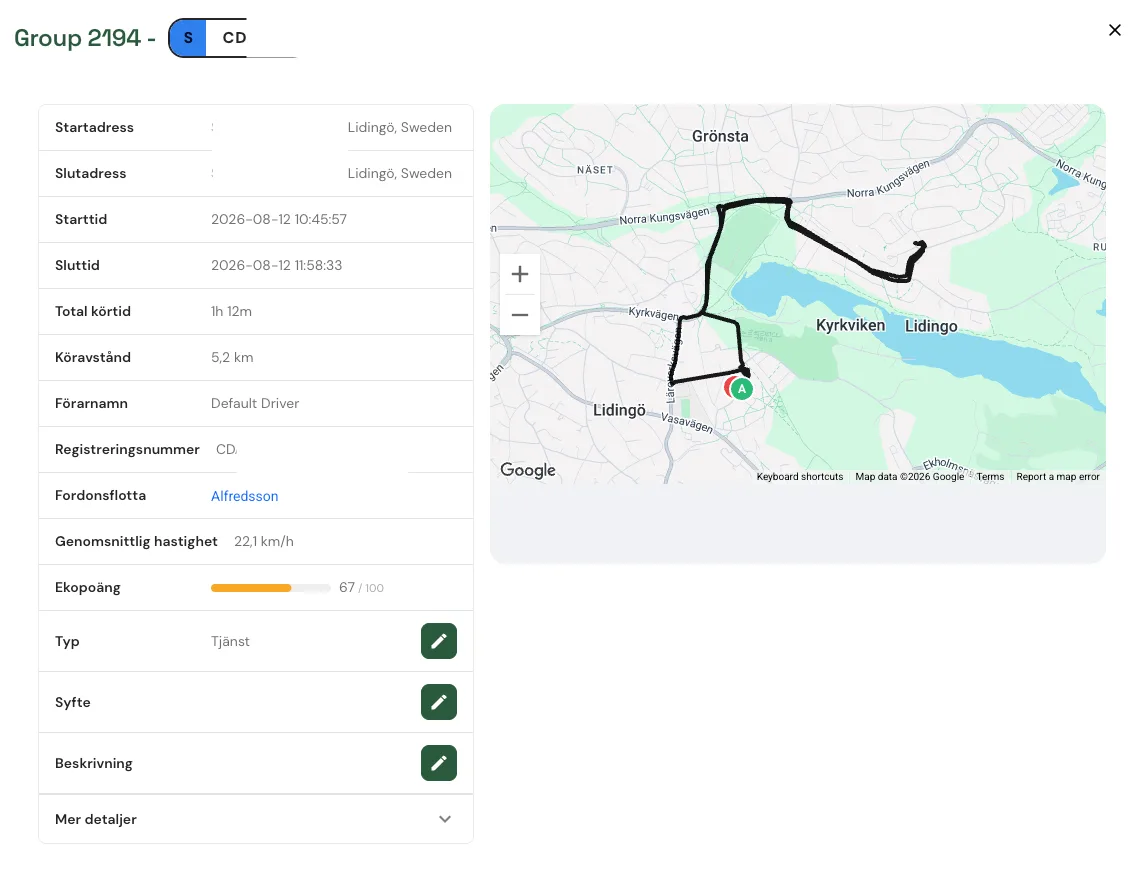
The trips are now merged, which you can see from this marker on the trip
If you have merged the wrong trips or simply want to split your trips again, you
can of course do so by first selecting the merged trip and clicking the yellow “Ungroup” button

Save trips as a route
Step 1 – Go to Trips in the left column
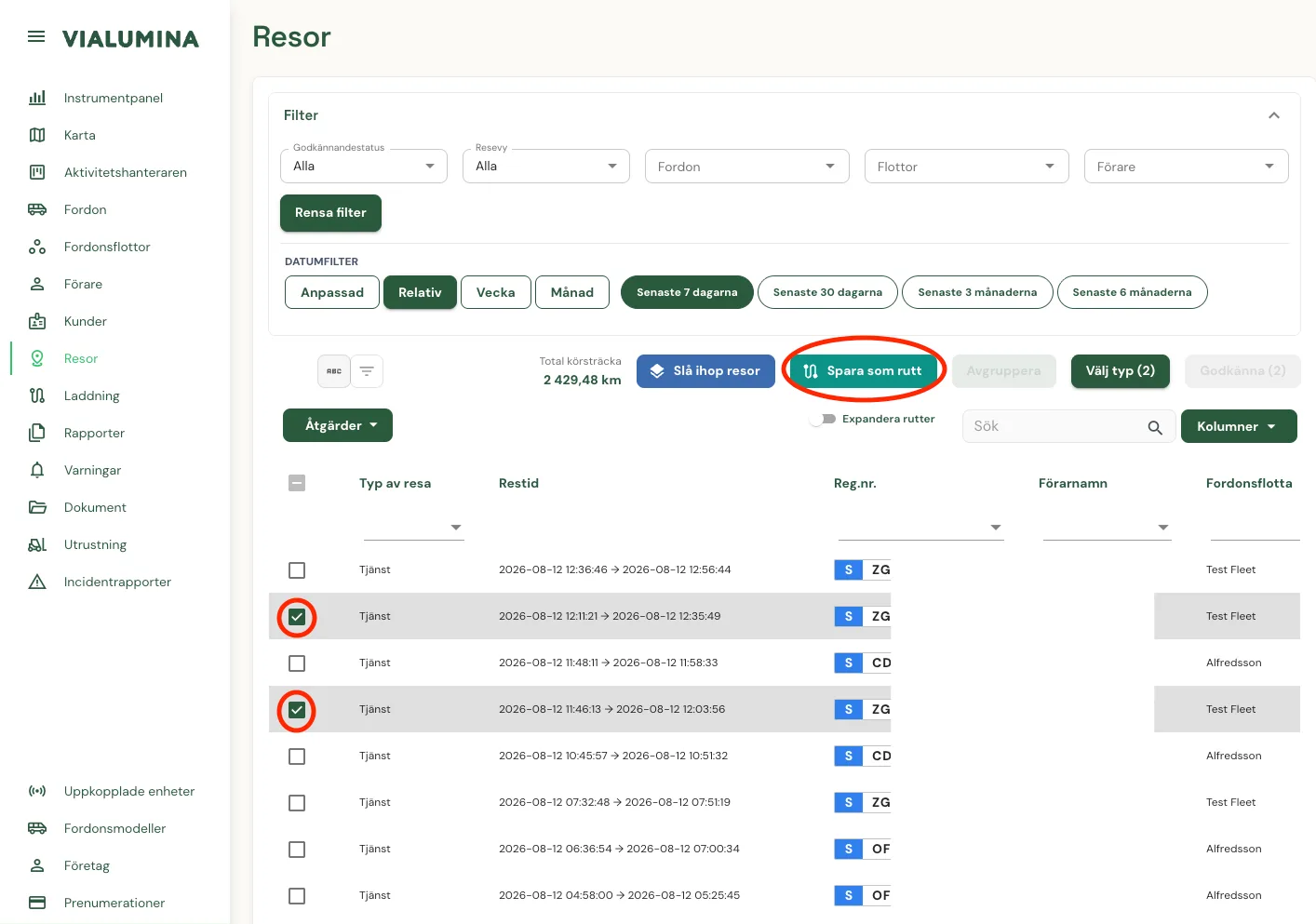
Step 2 – Select the trips you want to save as a route and then click Save as route
Once this is done, a route can look like this
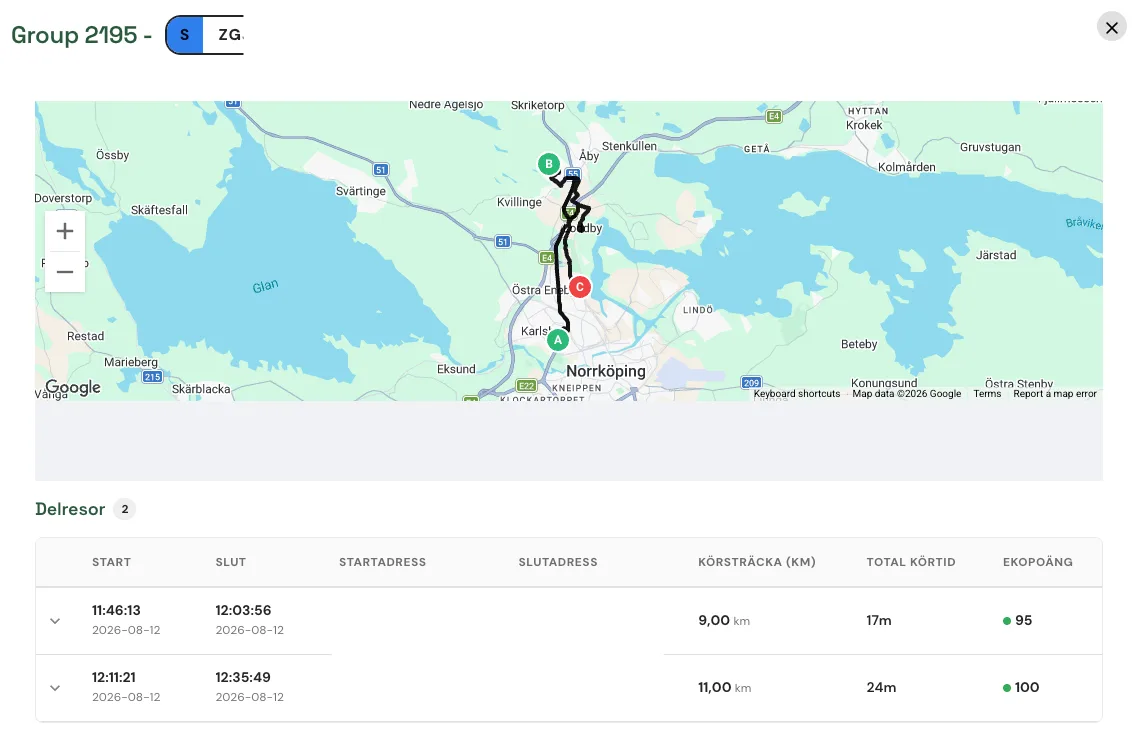
If you need to ungroup a trip, select the route and click the yellow “Ungroup” button
Not using Vialumina yet? See how mileage logs, vehicles and charging work together in one system.
Book a demo