
← Help Center · Driving & trips
Edit and approve trips in Vialumina GO
This guide shows how to edit and approve trips in Vialumina GO. You learn to classify trips as private or business, add a purpose and mark them as ready for reporting.
00:02 – Open the mileage log

- From the main menu, tap
Mileage logto see all your registered trips.
00:14 – Quick-classify a trip
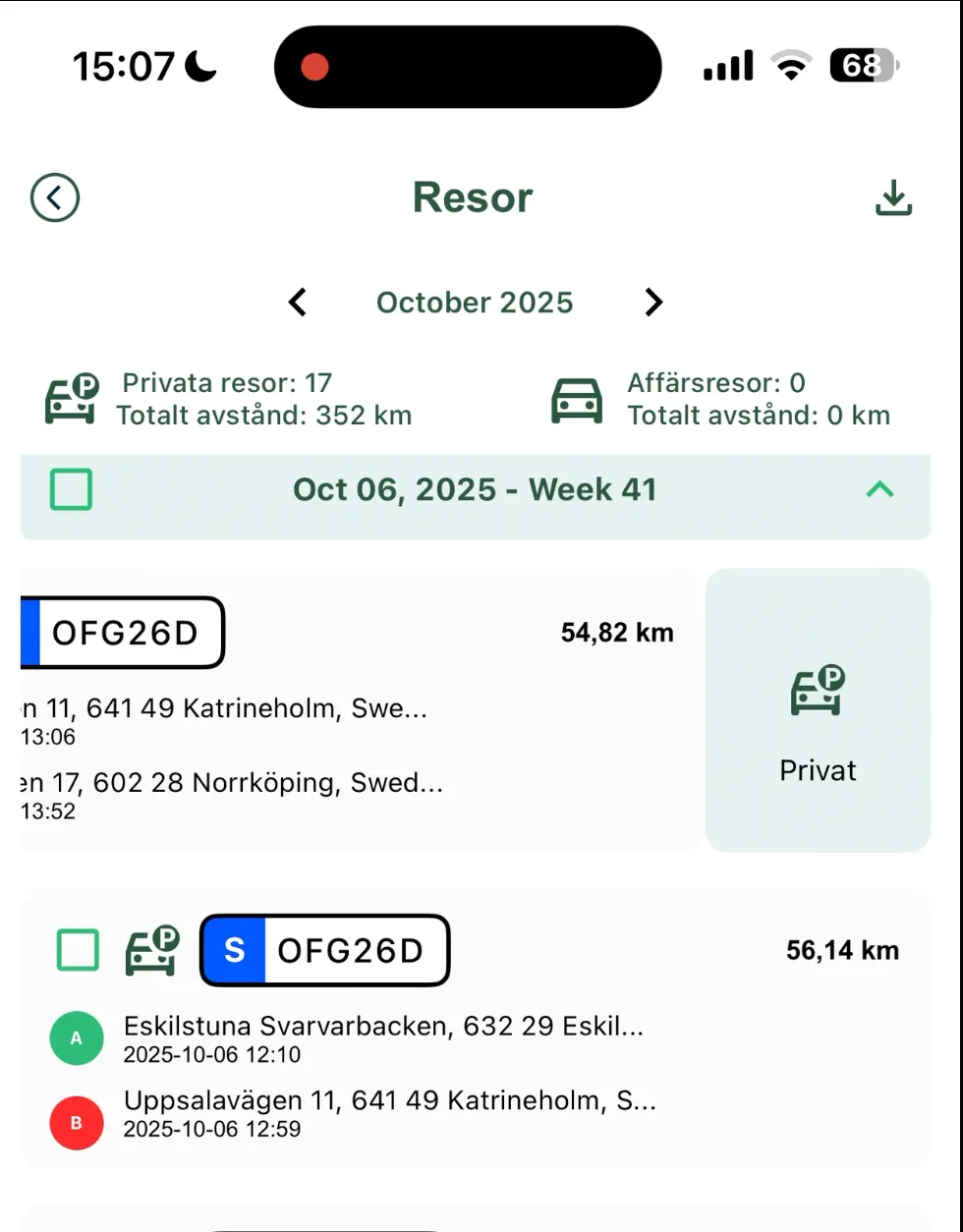
- Swipe left on a trip in the list to make it a private trip.
00:14 – Private trip marked

- The trip is marked as private.
00:16 – Make a trip a business trip
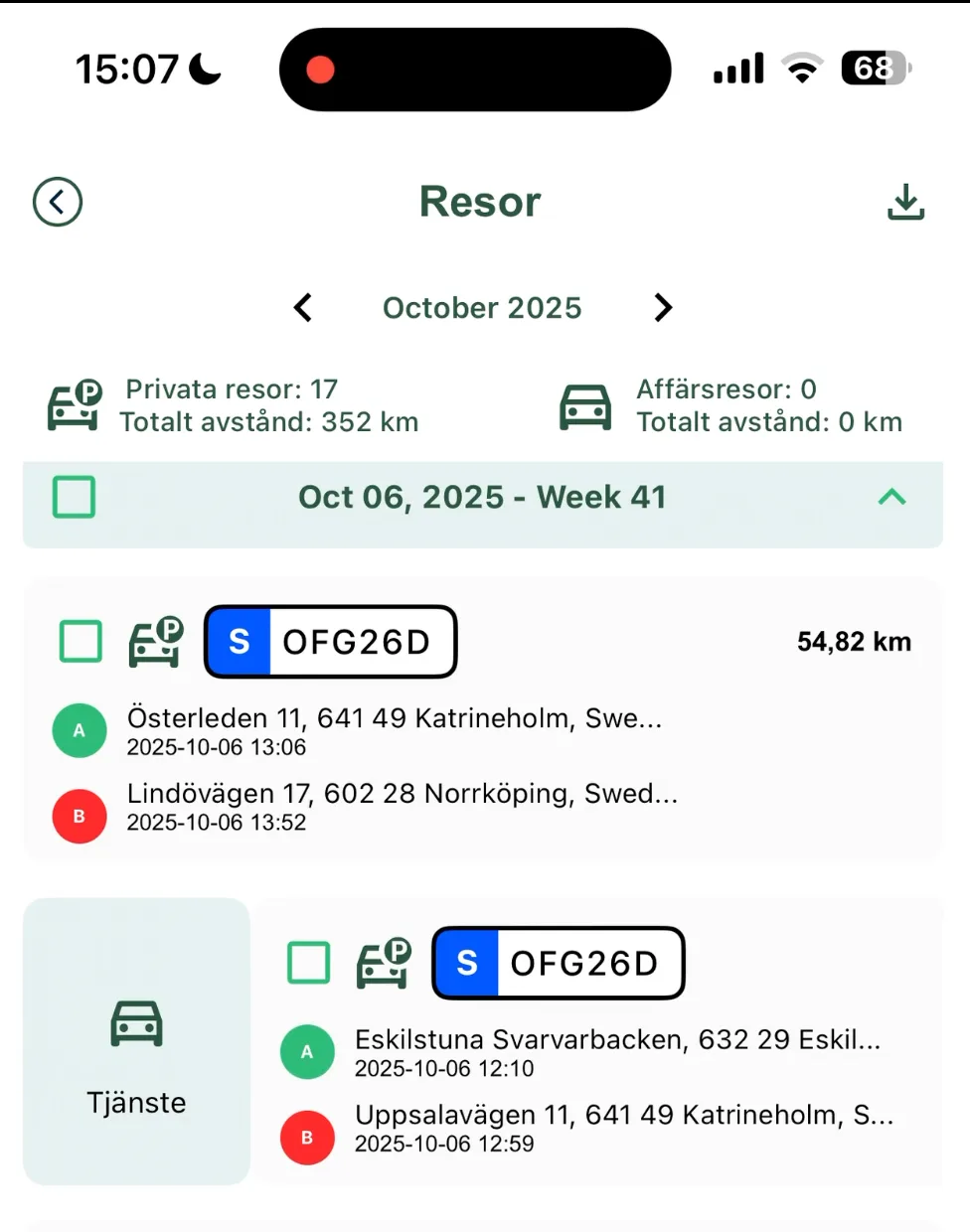
- Swipe right on a trip in the list to make it a business trip.
00:18 – Business trip marked
- The trip is now classified as a business trip.
00:39 – Edit a trip
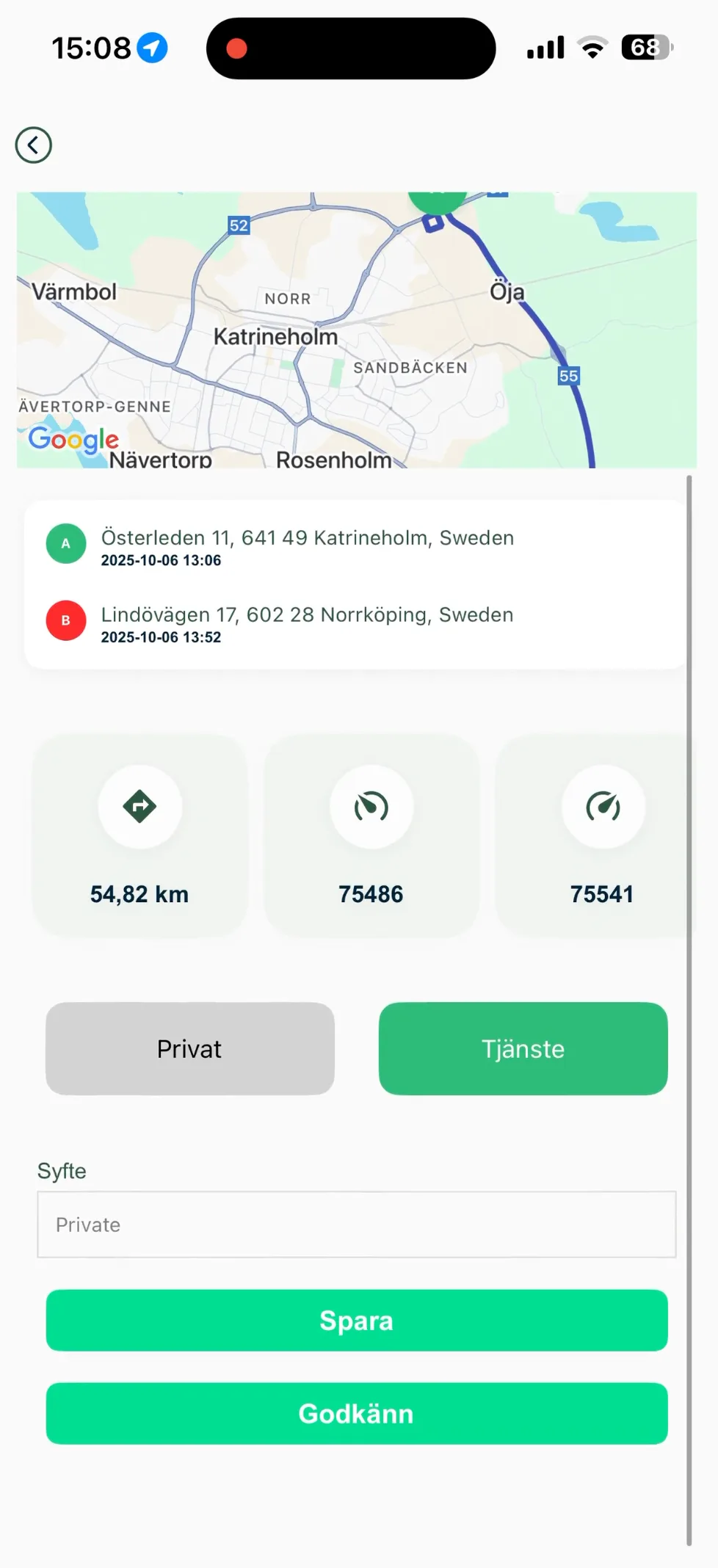
- Tap a specific trip to see the details.
- Here you can classify the trip and fill in the
Purposefield, e.g. “Business trip to [customer]”. - Tap
Savewhen you are done.
01:03 – Approve trips
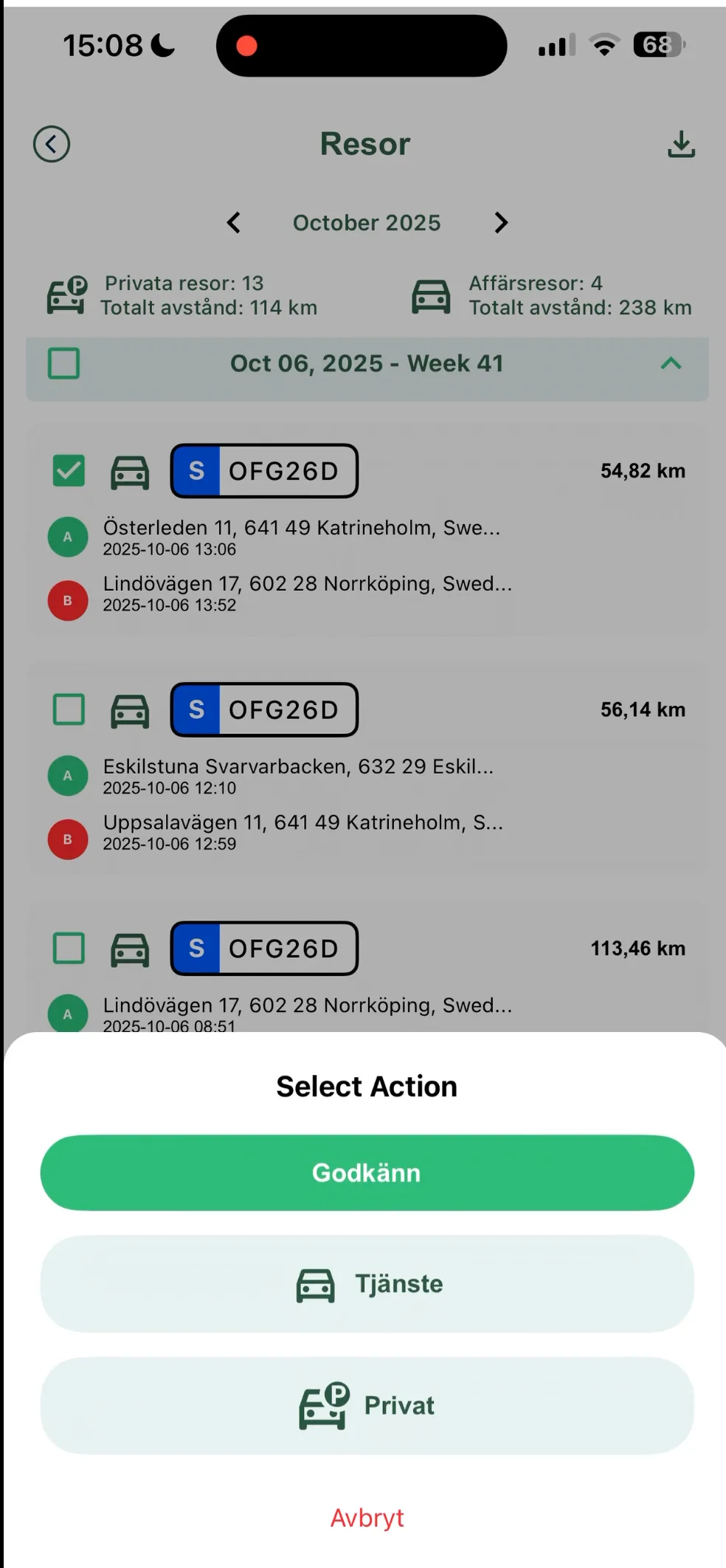
- Tap and hold a trip to open a menu.
- Choose
Approveto mark the trip as ready for reporting. - A green check mark is shown when the trip is approved.
- You can also select several trips and approve them at the same time.
Approved trips

- Shown with a green check mark.
Next steps in the app:
Not using Vialumina yet? See how mileage logs, vehicles and charging work together in one system.
Book a demo