
← Help Center · Notifications & communication
Manage notifications in Vialumina GO
This guide shows how to manage notifications in Vialumina GO. You learn to see new messages in the Inbox, review archived notifications and keep track of important alerts directly in the app.
00:01 – Go to Notifications
- Tap the “Notifications” icon (the bell) to see your messages.
00:02 – Inbox
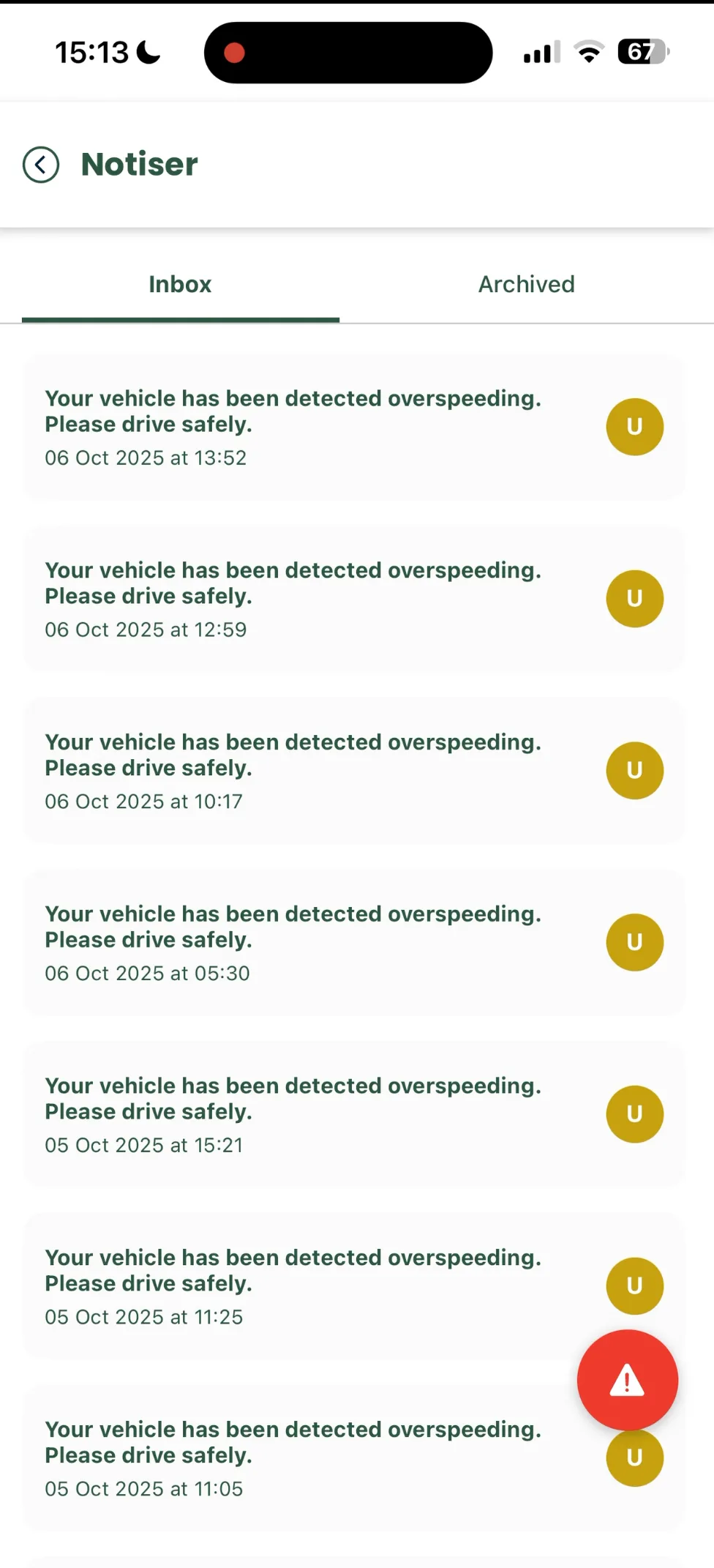
- You first land in your “Inbox”.
- All new and unread notifications are listed here, for example speeding alerts.
00:03 – Archived notifications
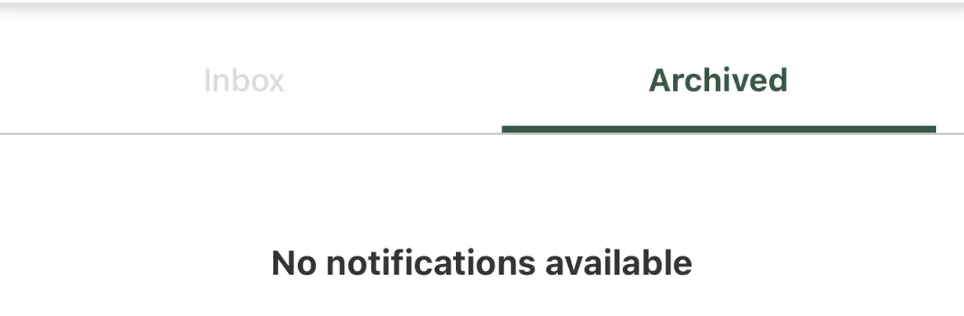
- Tap the “Archived” tab to see notifications you have archived earlier.
- If it is empty, the message “No notifications available.” is shown.
Related guides
Next steps in the app:
Not using Vialumina yet? See how mileage logs, vehicles and charging work together in one system.
Book a demo