
← Help Center · Getting started & profile
Main menu and language in Vialumina GO
This guide shows how to navigate the main menu in Vialumina GO and how to change the language in the app. You learn to find features such as Mileage log, Notifications and Fleet, and to change the language settings step by step.
The main menu
When you start the app you see the main menu. From here you reach all features:
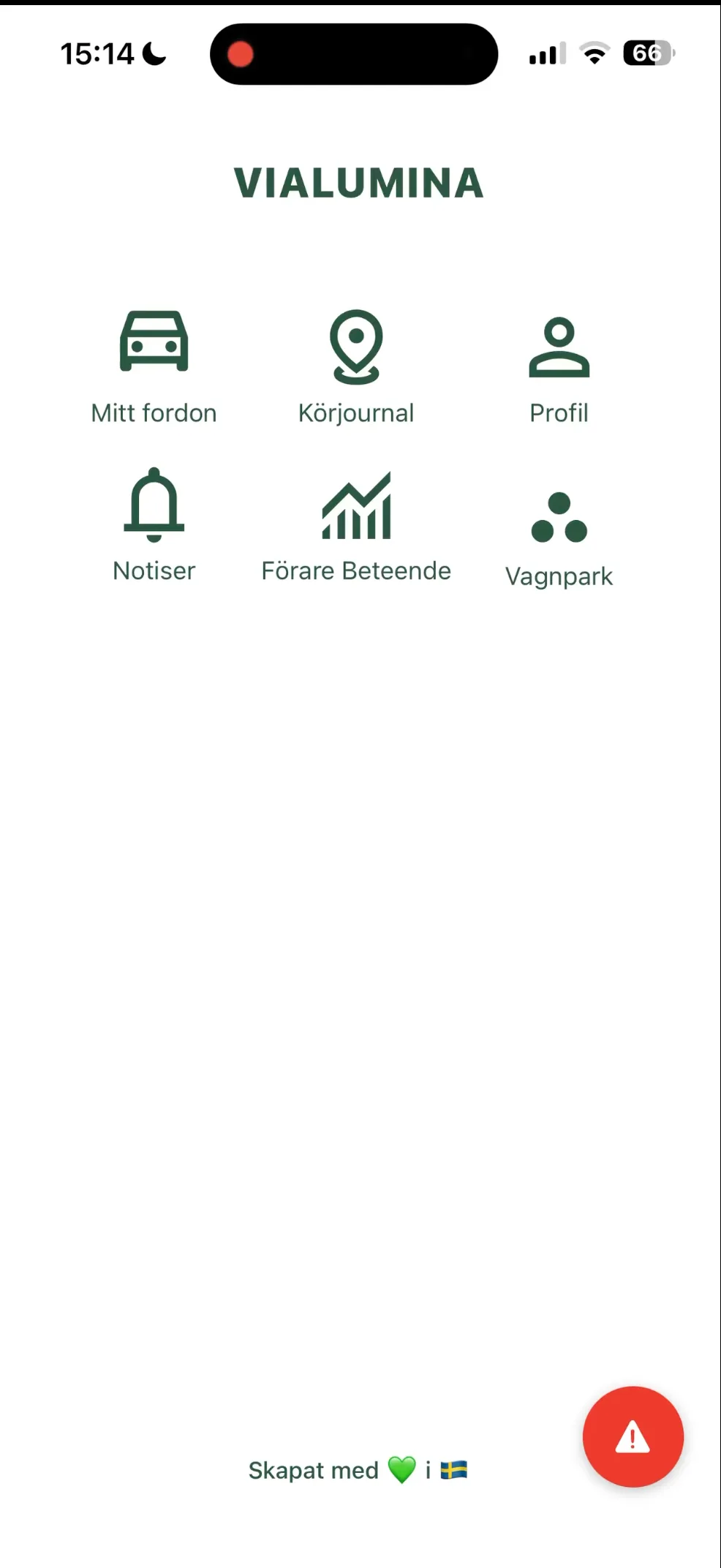
The main menu
- My vehicle: Details about your vehicle.
- Mileage log: Your digital mileage log.
- Profile: Your personal settings.
- Notifications: Important messages and alerts.
- Driver behaviour: Analysis of your driving style.
- Fleet: Overview of all vehicles (for administrators).
Change language
Here is how to change the language in the app.
00:02 – Go to Profile
- From the home screen, tap the Profile icon.
00:05 – Open the language menu
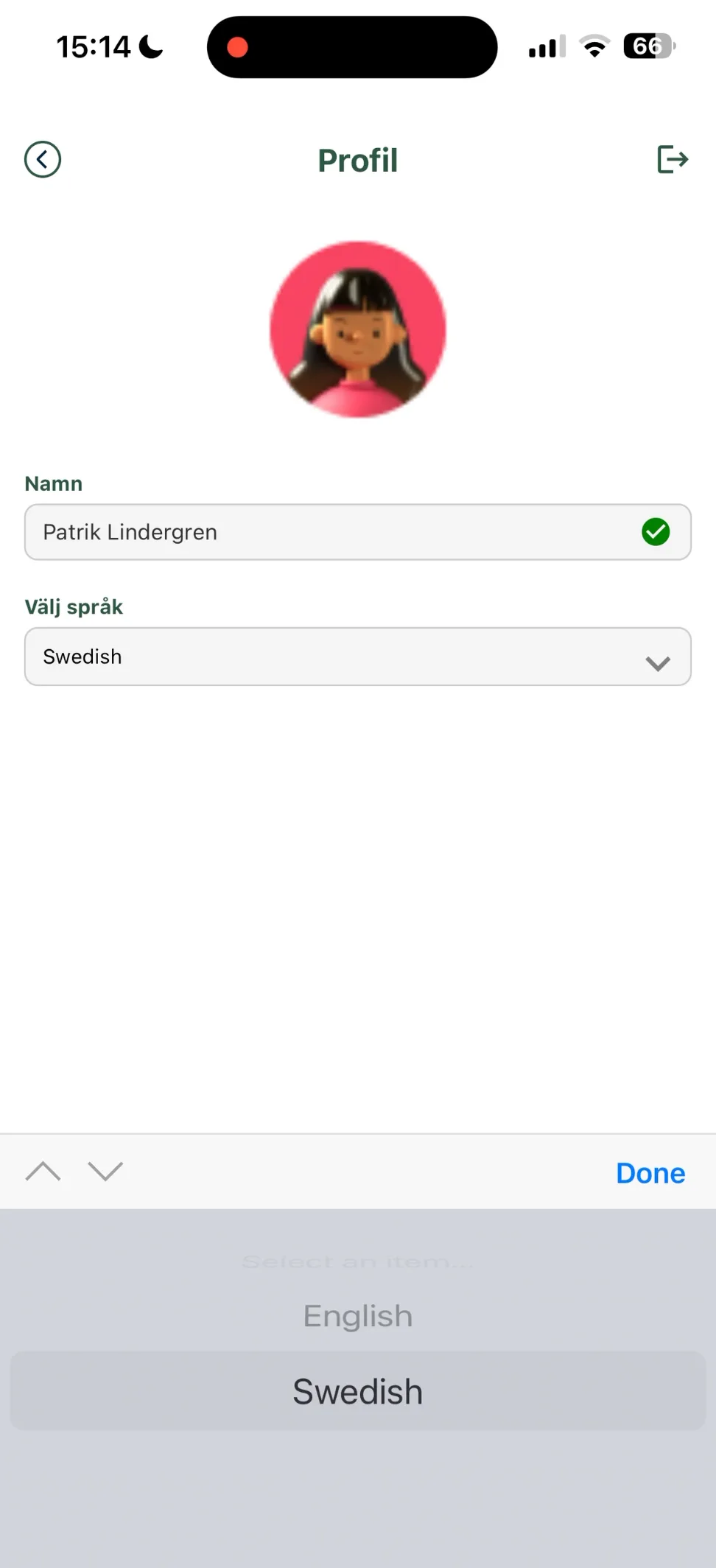
- On your profile page, tap the drop-down menu under Choose language.
- 00:07 – Choose the language you want from the list (in the video, “English” is selected).
00:08 – The app updates
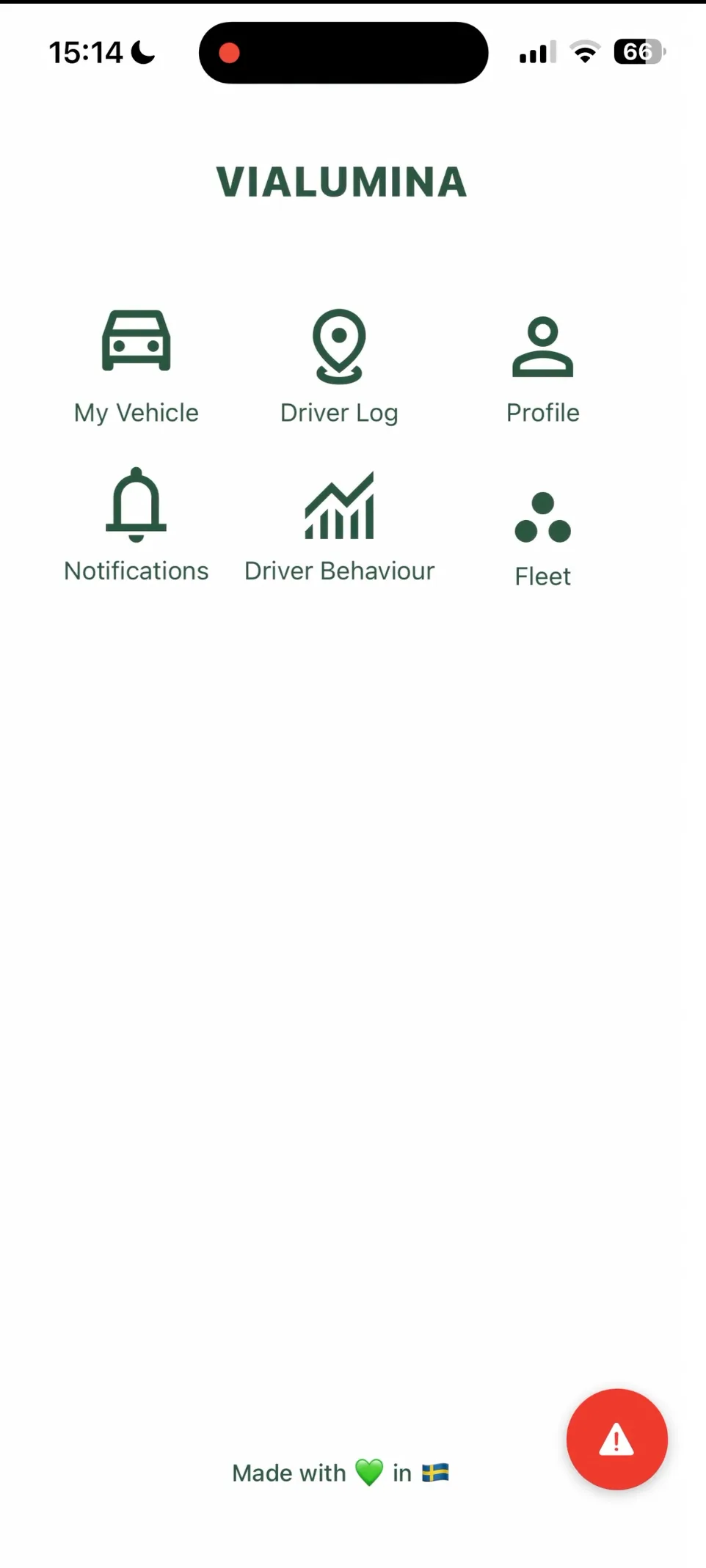
- The app updates immediately to the selected language.
- 00:20 – To switch back, repeat the steps and choose “Swedish”. The app then returns to Swedish.
Related guides
Next steps in the app:
Not using Vialumina yet? See how mileage logs, vehicles and charging work together in one system.
Book a demo