
← Help Center · Driving & trips
View and understand your fleet in Vialumina GO
This guide shows how to use the fleet view in Vialumina GO to see vehicle positions, status and details in real time, directly in the app.
00:00 – Open Fleet

- From the main menu, tap the “Fleet” icon to get an overview of all your vehicles.
00:02 – Vehicle overview
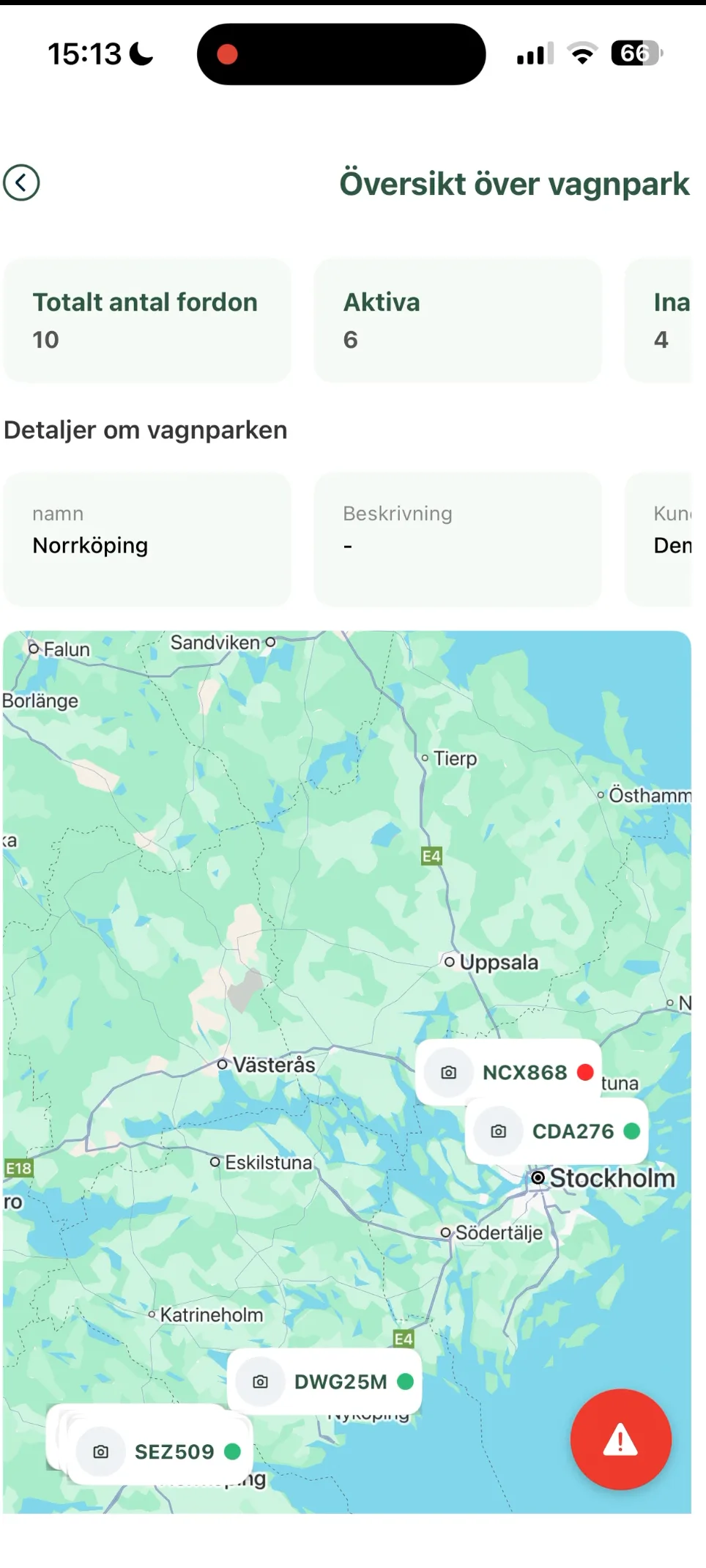
- You now see a map with your vehicles’ positions in real time.
- It also shows the total number of vehicles and how many are active and inactive.
00:08 – Vehicle details
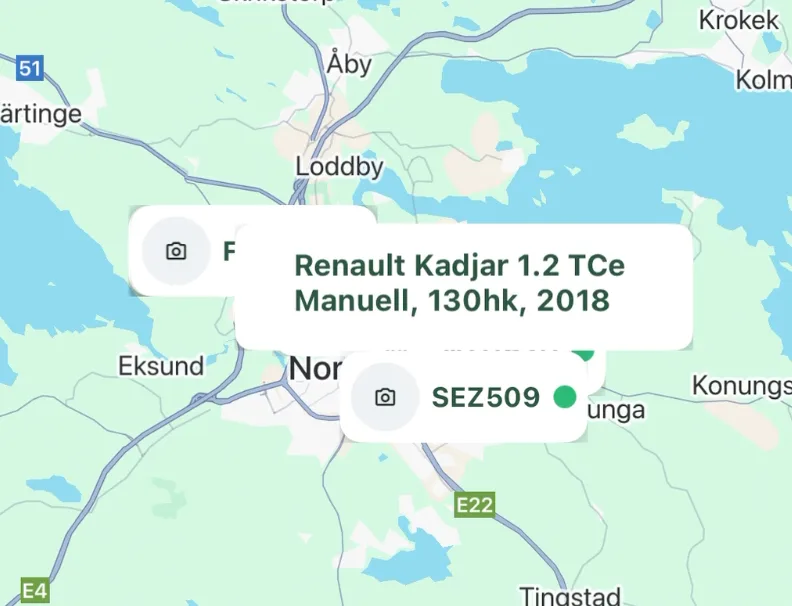
- Zoom in on the map and tap a vehicle (or a group of vehicles) to see more information.
- 00:09 – A box with details about the selected vehicle is shown, such as model and registration number.
- 00:11 – If several vehicles are in the same place, you can swipe in the box to browse between them.
Next steps in the app:
Not using Vialumina yet? See how mileage logs, vehicles and charging work together in one system.
Book a demo