
← Help Center · Incidents & driving behaviour
Report an incident in Vialumina GO
This guide shows how to report an incident in Vialumina GO. You learn to choose a vehicle, enter the location and description, add photos and send the report directly from the app.
00:00 – Start a new report

- From the app’s main menu, tap the red button at the bottom to start a new incident report.
- You then reach the “Report incident” form.
00:02 – 00:08 – Choose vehicle
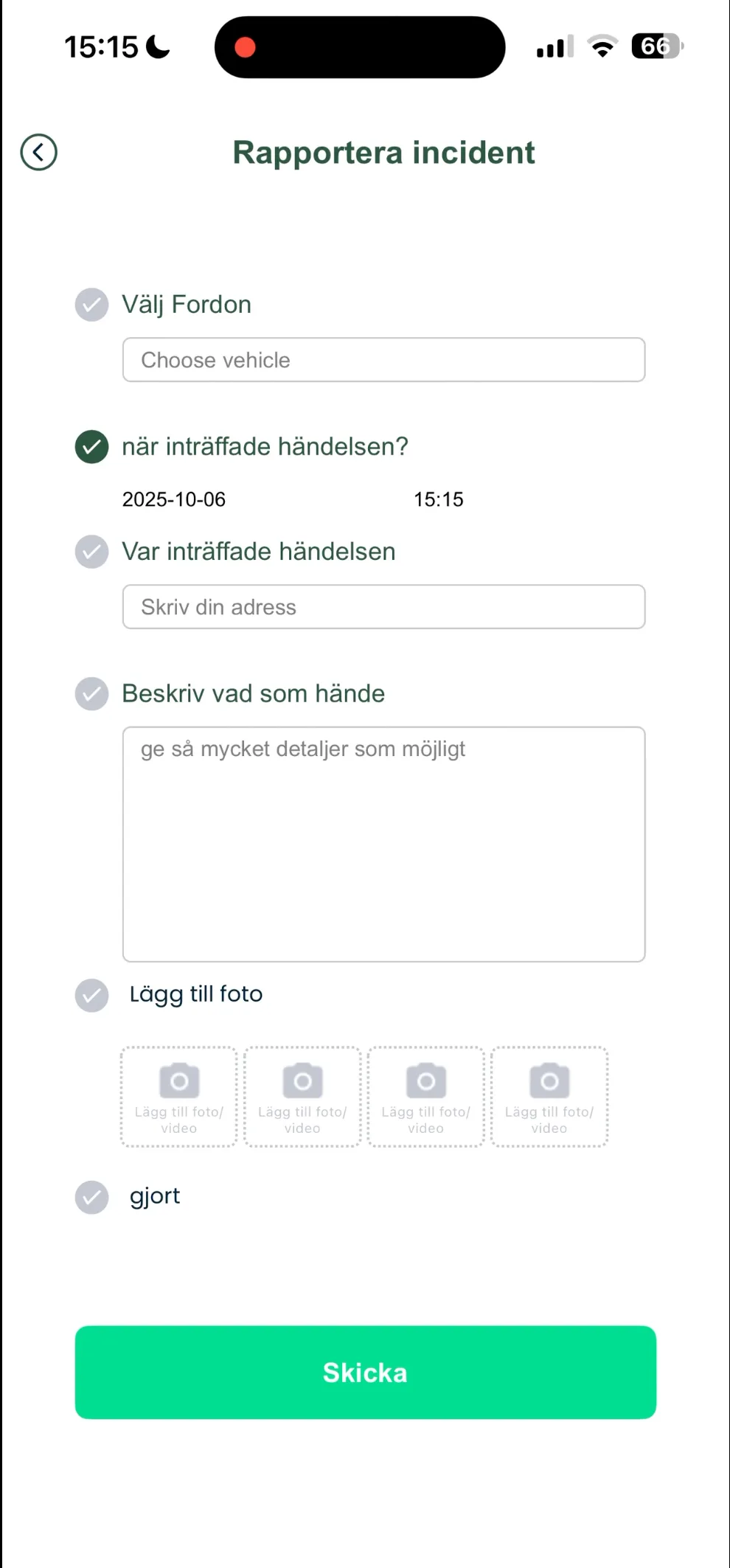
- Tap the “Choose vehicle” field.
Vehicle from list
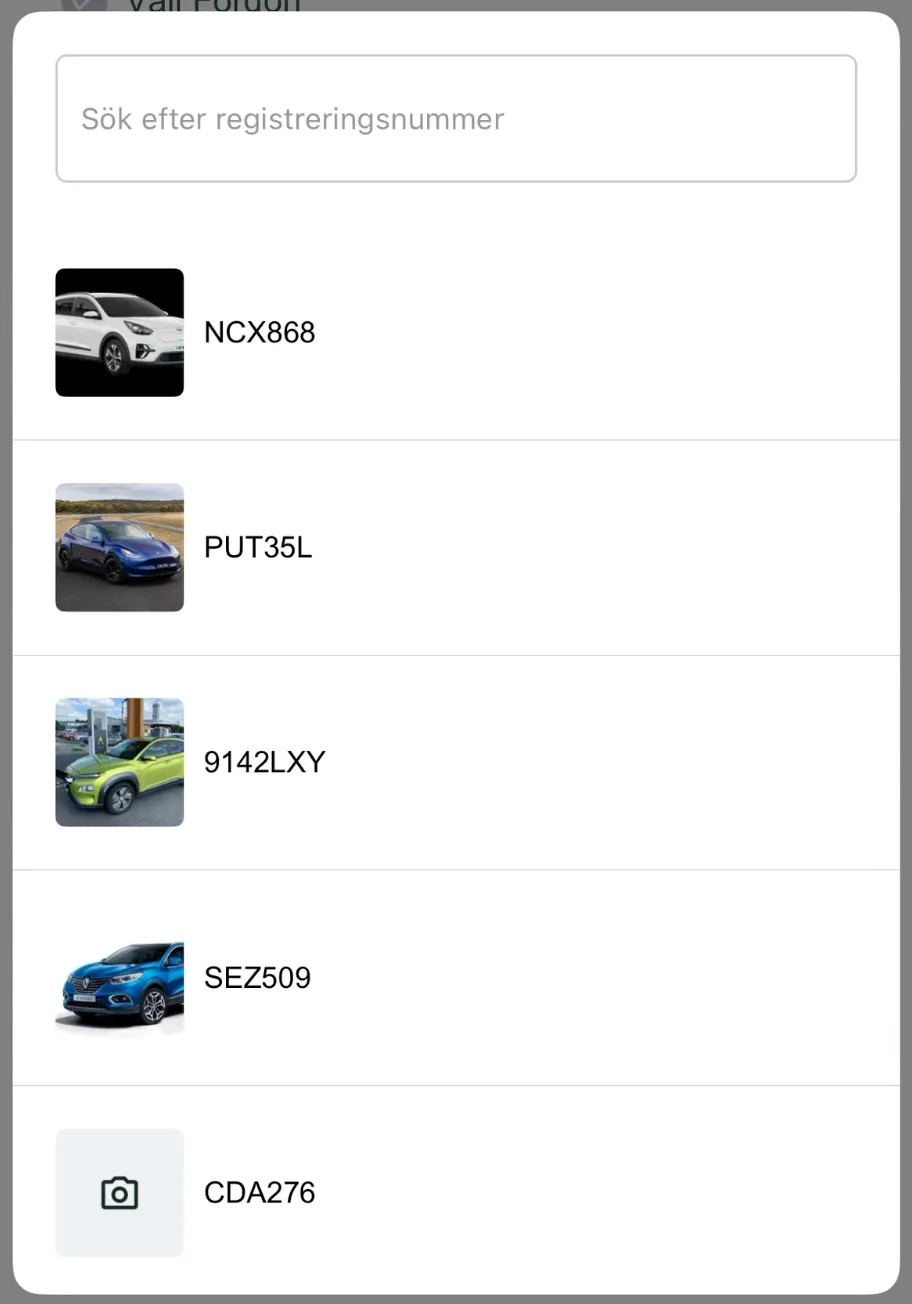
- A list of your vehicles is shown.
- You can search by registration number or browse the list.
- Choose the vehicle the incident concerns.
00:10 – 00:24 – Enter the location
- Tap the “Enter your address” field.
- Start typing the address where the incident happened – the app gives suggestions.
- Choose the right address from the list to fill in the field automatically.
00:25 – 00:41 – Describe what happened
- Tap the text box under “Describe what happened”.
- Give a short but clear description, e.g. “Parking damage, tailgate.”
00:42 – Add photos
- Tap the camera icons under “Add photo”.
- Take or choose photos/videos that clearly document the damage.
- Note: This step is often mandatory.
00:45 – 00:48 – Send the report
- When all fields are filled in and photos added, tap the green “Send” button.
- If you get an error message (as in the video at
00:48), a mandatory field is missing. - Fill in the missing field and try again.
Next steps in the app:
Not using Vialumina yet? See how mileage logs, vehicles and charging work together in one system.
Book a demo