
← Help Center · Driving & trips
Manage and export the mileage log in Vialumina GO
This guide shows how to manage your mileage log in Vialumina GO. You learn to classify trips, edit several trips at once and export PDF reports to share by email.
This guide helps you quickly manage and export your mileage log.
1. Find and manage your trips
00:01 – Open the mileage log

- Open your mileage log by tapping Mileage log on the home screen.
00:03 – Navigate between months

- Use the arrows at the top to browse between months.
- 00:10 – Quick-classify: Swipe a trip to the left to approve it directly as a business trip.
- 00:14 – Change trip type: Swipe a trip to the right to choose between “Business”, “Private” and more.
2. Manage several trips at once
00:06 – Select several trips
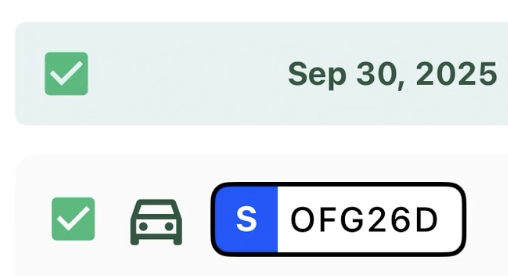
- Tick the box next to a date to select all trips for that day/week.
00:07 – Edit selected

- Tap Edit (or the equivalent button that appears).
00:08 – Apply a common action
- Choose a common action for the selected trips, for example classifying all of them as Business or Private.
3. Export and send your report
00:20 – Export report

- Tap the export icon (the arrow pointing down) in the top right corner to create a report.
00:21 – PDF is generated
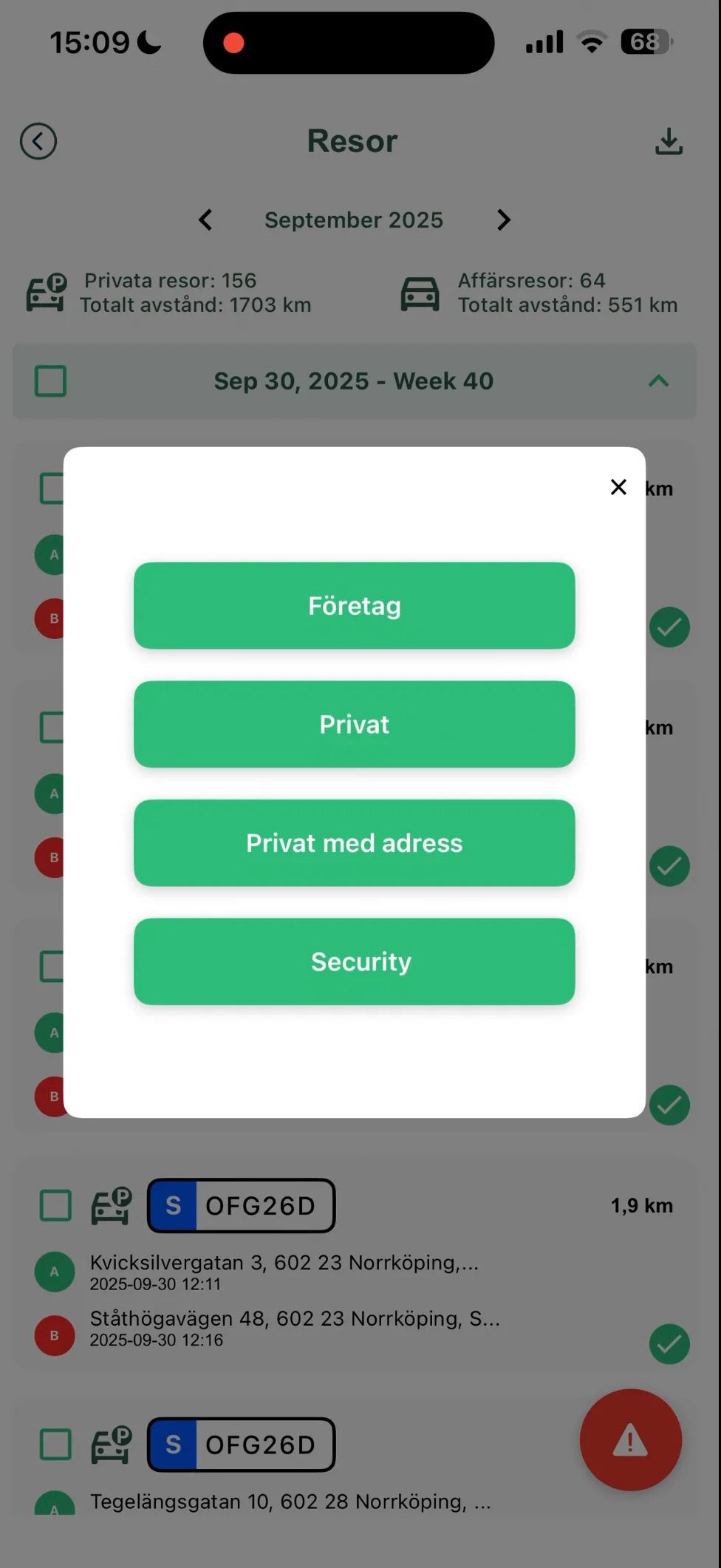
- A PDF report is generated automatically.
00:25 – Share the report
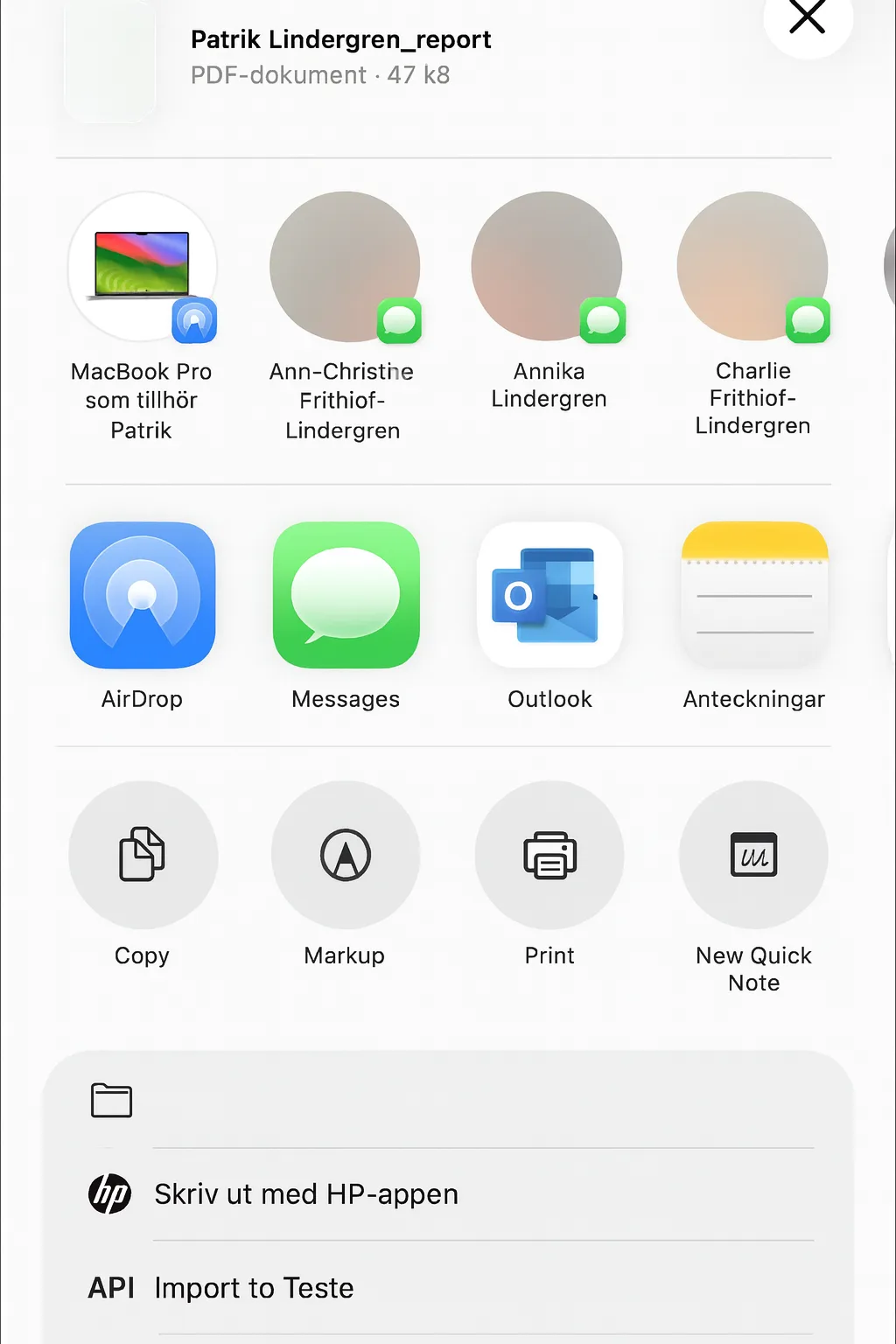
- Choose how you want to share the report, for example via Outlook or another email app.
00:33 – Send the report
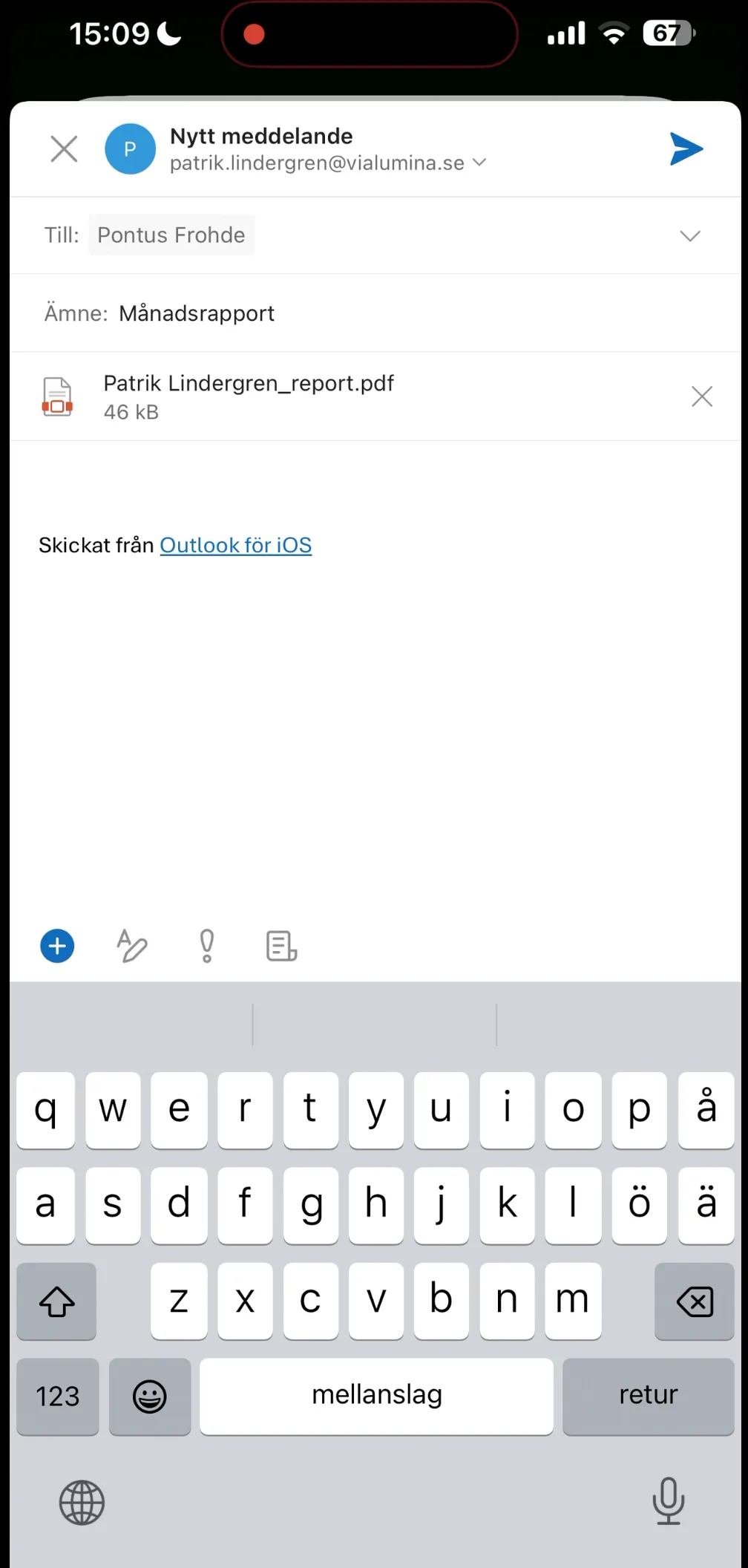
- Fill in the recipient and subject (e.g. “Monthly report”) and send it.
Next steps in the app:
Not using Vialumina yet? See how mileage logs, vehicles and charging work together in one system.
Book a demo